
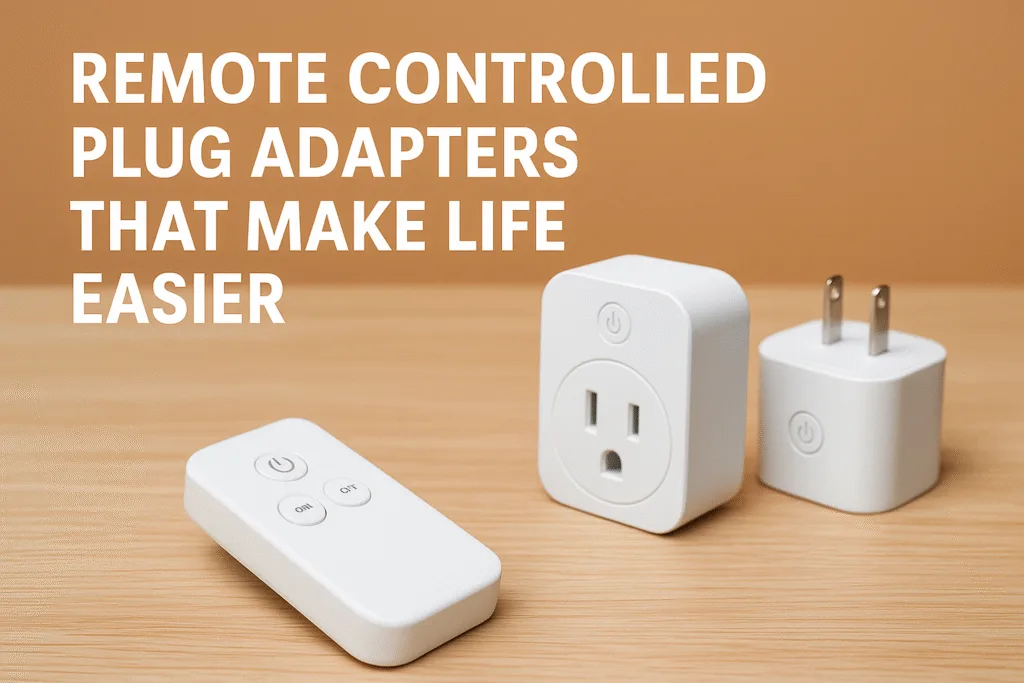
Remote controlled plug adapters (also known as “smart plugs”) do make life easier. They let you turn ordinary lamps, fans, coffee makers and other appliances on/off from anywhere via your smartphone or voice assistant. For example, you can schedule lights to shut off at bedtime or switch off the curling iron after you’ve left for work.
Smart plugs are “one of the easiest and most affordable” ways to upgrade existing devices into smart ones. As a result, you save time and energy (and even money on your electric bill) while adding convenience and safety.
Ready to automate your home? Choose a smart plug that works with your setup (Alexa, Google, HomeKit or Matter) and plug it in. Connect it to your Wi-Fi and device app, then enjoy remote control of that appliance from your couch or across the globe.
Below we’ll cover exactly how to pick, set up, and use these adapters – and troubleshoot any hiccups – so you can get started today.
Why Use a Remote Controlled Plug Adapter?
Remote plug adapters solve real, everyday hassles. They automate appliances you already have, so you never have to worry about forgetting something again. For example, you can have a bedside lamp on a smart plug and say, “Alexa, turn off the lamp” from the kitchen, or use your phone to switch it off while you’re at the office. This convenience means no more crawling under the couch to unplug a lamp or rushing home to turn off a heater.
They also let you schedule devices on a timer. As Good Housekeeping explains, you can program lights or coffee makers to automatically turn on/off at set times. This not only fits your routine but also saves energy – you won’t waste electricity running appliances when no one’s using them. For instance, you might schedule your porch light to come on at dusk and go off at midnight, ensuring it’s not burning power all night. With timers and “away” modes, smart plugs even simulate occupancy: they can randomly power lamps on/off when you’re on vacation to deter burglars.
Safety and peace of mind are big wins too. Did you ever frantically ask a spouse, “Did I leave the curling iron on?” Now you can check the smart plug app – or turn it off remotely. Asurion notes that plugging a heat-producing appliance into a smart plug lets you switch it off after the fact, preventing fire hazards. In short, smart plugs give you on-demand control and oversight of your devices, which leads to energy savings, home security, and fewer accidents.
According to industry surveys, smart home gadgets are already mainstream: 93% of Americans now own at least one smart home device. In fact, experts call smart plugs “the best entry” into home automation. If you’ve been curious, a smart plug is a low-risk, low-cost way to test the waters. Plug one in, and you’ll quickly see why so many tech enthusiasts and DIYers rely on them.
How Remote Controlled Plug Adapters Work
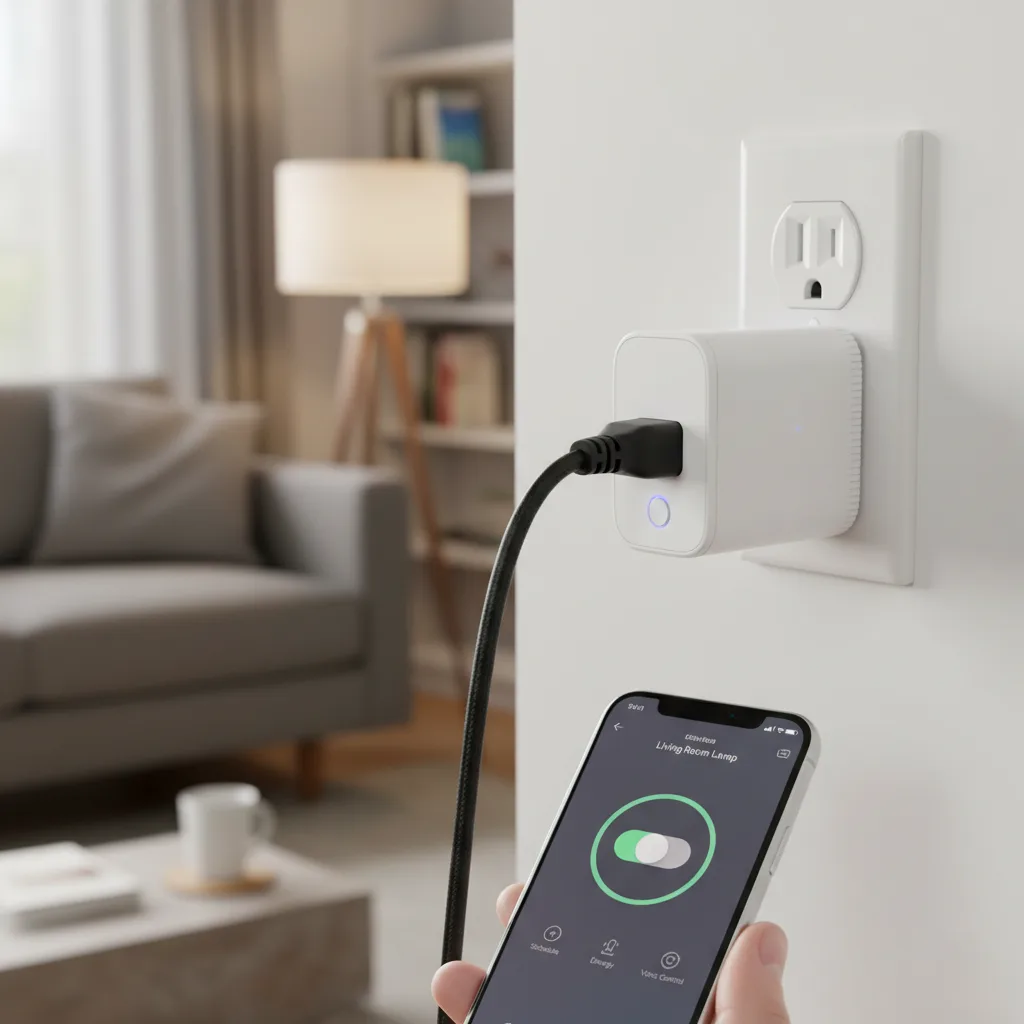
A remote controlled plug adapter is a smart outlet. It plugs into a standard wall socket and adds wireless connectivity and control to whatever is plugged into it. Here’s how it generally works:
- Plug In & Connect to Wi-Fi. You plug the adapter into the wall and then connect it to your home Wi-Fi network using a smartphone app. (Most smart plugs today use 2.4GHz Wi-Fi – keep reading on troubleshooting if your plug won’t pair.)
- Plug an Appliance In. Anything you plug into the adapter can now be controlled. For example, plug your lamp or fan into the smart plug. When the plug is turned off, the appliance has no power; when it’s on, the appliance works as usual.
- Control via App or Voice. Using the accompanying app (or a voice assistant like Alexa or Google Assistant), you can remotely switch the plug on or off. You can also set schedules or even group multiple plugs together. Good Housekeeping explains it: once set up, “you’ll now be able to control [your devices] on your phone from wherever you are”.
Most smart plugs support voice control (Alexa, Google, Siri) and some support emerging standards like Matter (ensuring future compatibility). For example, Leviton’s Decora Smart Plug works with Alexa, Google, HomeKit and Matter, so it plays nice in virtually any ecosystem. In practice, this means you could say “Hey Google, turn off the living room lamp” and the plug shuts it off – no manual switch-flipping needed.
Major Pain Points & How Smart Plugs Fix Them
Let’s address the common frustrations (pain points) that smart plugs solve. For each, you’ll see why the problem happens, how a plug fixes it, and what you can do right away.
- Forgotten Appliances (Safety/Worry): It’s easy to leave something on in the morning rush – a space heater, curling iron, or coffee maker. Diagnosis: You ran out the door and forgot to unplug or switch off a device. Why: Busy schedules and distractions mean even simple tasks slip our minds. Solution: With a smart plug, if you realize you left something on, use the phone app or a voice command to shut it off from anywhere. Action: Set up your plug’s app now and create an “OFF” schedule for critical devices at a reasonable time (for instance, turn off the bedroom heater at 8:00 AM). Or teach your voice assistant a routine (“Bedtime” means turn off all lights). Example: Sarah once left an iron plugged in on “High” when she went to work. Using her smart plug’s mobile app, she was able to power it off remotely – avoiding a potential fire hazard.
- Hard-to-Reach Outlets (Convenience): Many homes have lamps or chargers behind heavy furniture or on tall shelves. Diagnosis: You hate crawling under the sofa to plug/unplug lamps or cursing because the outlet is behind the bookcase. Why: Rooms aren’t always wired for convenience. Solution: A slim smart plug can fit into tight spots. Reviewers love the TP-Link Kasa Smart Plug Mini for its compact design – it “can be stacked in the same outlet as another smart plug or squeezed into smaller spaces like behind the couch”. Once plugged in, the device is accessible via the app, so you never have to reach the switch physically. Action: Buy a low-profile smart plug if space is tight (the Kasa EP10 is a popular example). Verify it supports your voice platform. Example: John installed a mini smart plug behind his sectional for the corner lamp. Now he taps his phone screen or says “Alexa, turn off the reading lamp” without ever moving the couch.
- Home Security (Awareness): Dark houses and static routines can attract prowlers. Diagnosis: When you travel or work late, your home can look empty. Why: We often forget to automate lights or can’t manually flip them on from afar. Solution: Use the scheduling or “away” mode features. Many plugs let you set randomized on/off patterns so lights flicker on and off while you’re away, simulating occupancy. Good Housekeeping notes that Kasa’s mini plug “even offers an away mode” for this purpose. Action: Create a timer or routine in your plug’s app to turn key lights on/off at evening hours you usually keep them on. Add randomness if available. Example: Planning a vacation, Maria scheduled her living room lamp to turn on at 7:00 PM and off at 11:00 PM every night. A stranger-looking schedule (maybe 7:10 one night, 8:30 another) makes it seem like someone’s home. This deterred potential thieves and gave her peace of mind.
- High Energy Bills (Efficiency): Background “vampire” power from chargers, microwaves, or TVs in standby costs money. Diagnosis: You notice surprisingly high electric bills, or have many devices that draw power even when “off.” Why: Many appliances consume idle power if plugged in continuously. Solution: Smart plugs can completely cut power at scheduled times, eliminating phantom load. For example, you can ensure your Wi-Fi router or printer only has power during working hours, or that chargers are off when not charging. As Asurion explains, scheduling with smart plugs means “lights [and other devices] only come on during certain times when you’re home so they’re not wasting energy in the meantime”. Action: Identify devices that don’t need 24/7 power (chargers, holiday lights, etc.) and plug them into smart plugs. Set them to off during long idle periods (nighttime, work hours). Example: Mike plugged his home office printer into a smart plug and set it to turn off at 7:00 PM. Overnight, the printer now uses 0W, shaving dollars off his monthly bill and preventing needless wear on the machine.
- Power Outages (Reliability): After a blackout, some plugs default off, and your devices stay off until you reset them. Diagnosis: A storm hits, electricity returns, but your lamp or coffee maker plugged into a smart plug doesn’t turn on automatically. Why: Many smart plugs are designed to default to the “off” state when power is restored (a safety feature). Solution: This is usually intended – it prevents devices from turning on unexpectedly – but you can plan for it. Action: Check if your plug’s manufacturer offers a “power recovery” setting (some allow you to choose “last state” or “on after power”). If not, just be aware that after an outage, you may need to re-activate them via the app. Example: After an outage, Luis noticed his smart plug stayed off (as SlashGear explains, that’s normal behaviour). He now programmatically accounts for this by manually scheduling the morning coffee plug to turn on at 6:00 AM instead of relying on it staying on through the night.
These examples illustrate how smart plugs resolve common frustrations. The key takeaway: You get remote, scheduled, and automated control of devices that once required physical intervention. By setting up a plug and a simple schedule or using your voice, you instantly fix each pain point.
Choosing the Right Plug Adapter
Not all plug adapters are the same. To pick the best one for you, keep these factors in mind:
- Compatibility: Ensure the plug works with your ecosystem. If you have an Amazon Echo setup, the Amazon Smart Plug integrates seamlessly into Alexa. If you use Google Home or multiple platforms, consider a neutral one: e.g. the TP-Link Kasa plugs support both Alexa and Google Assistant. Models like the Leviton Decora (D215P) even support Alexa, Google, Apple HomeKit and the new Matter standard, making them very versatile. Always check if the plug requires a hub or works standalone. Most Wi-Fi plugs do not need a hub, but some ecosystems (like Lutron Caséta) do.
- Power Rating and Load: Smart plugs typically handle about 10–15 amps (up to ~1800W). For lamps, chargers and small appliances, this is fine. But never plug high-power appliances like space heaters, hair dryers, air conditioners or refrigerators into a standard smart plug. These devices draw too much current and can overheat the plug or cause a fire hazard. If you need to control heavy-duty equipment, look for “heavy-duty” smart plugs (often called “appliance inverters” or industrial smart plugs) with higher amp ratings.
- Size/Form Factor: A bulky plug may block the second socket on a wall outlet or not fit in crowded power strips. If space is an issue, choose a mini or compact plug (like the Kasa EP10). GoodHousekeeping notes that compact models are great because you can even stack two side by side. If you want more outlets, consider a smart power strip instead (some let you control each outlet individually).
- Indoor vs Outdoor: Use an outdoor-rated smart plug for patio lights, fountains or garage equipment. These have weatherproof enclosures (check the IP rating). TP-Link’s Tapo P400M (aka TP25) is a top-rated outdoor plug with two independently controlled outlets. Lutron Caséta makes a rugged outdoor plug too (though it requires their smart bridge).
- Advanced Features: Some plugs offer extra perks like energy monitoring, USB ports (for chargers), or built-in surge protection. For example, the Kasa Smart Wi-Fi Power Strip HS300 controls six devices individually and even monitors energy use. Decide if such features are worth the extra cost for your needs.
- Safety Listings: In the U.S., look for UL (or ETL) certification on the plug. This means it’s been tested for basic electrical and fire safety. Also, ensure firmware is updatable – known vulnerabilities have been found in smart devices, so update plugs when manufacturers release fixes.
Here’s a quick checklist when shopping:
- Ecosystem Support: Alexa, Google, HomeKit or Matter? (Choose a model that matches.)
- Wi-Fi Band: Uses 2.4 GHz (most do) – ensure your router’s 2.4 GHz network is active.
- Amp Rating: At least 10–15A for most uses. Never exceed the plug’s rating.
- Number of Outlets: Single outlet or strip? Outdoor durability, if needed.
- Size: Mini vs standard – will it block other sockets?
- Extras: Scheduling app, energy monitoring, USB ports, etc.
- Certification: UL/ETL listed for safety.
Figure: Example step-by-step setup of a smart plug. First, plug it into the wall, then use the app to connect it to your 2.4 GHz network, and finally plug in your lamp or appliance to control.
Step-by-Step Setup and Troubleshooting
How to set up: Unbox your smart plug, plug it into an outlet, and install the manufacturer’s app on your phone. Put the plug into pairing mode (usually by holding a button until a light blinks). In the app, create an account and tap “Add Device.” Follow the prompts to connect to your 2.4 GHz Wi-Fi network (remember, most smart plugs do not support 5 GHz Wi-Fi, only 2.4. Within a minute, you should see the new device in the app. Give it a clear name (e.g. “Living Room Lamp”) so voice assistants can control it easily—test by turning it on/off from your phone.
Connecting to Voice Assistants: If you use Alexa, Google Home, or Siri, link the plug’s skill or integration through those platforms. For example, install the TP-Link Kasa skill in the Alexa app and discover devices – your new plugs will appear. Voice control means you can say, “Alexa, turn on the office fan.”
Troubleshooting Common Issues: It’s not uncommon to hit snags, especially Wi-Fi woes. According to a 2023 survey, 46% of smart home users report connectivity problems. If your plug isn’t connecting:
- Check Wi-Fi band: Ensure your phone and the plug are on the same 2.4 GHz network. If you have separate SSIDs for 2.4 and 5 GHz, make sure you select the 2.4 one.
- Move Closer/Reset Router: If the plug is far from the router, bring it closer during setup. Restart your router if needed. Sometimes, simply power-cycling the plug (unplug it, wait 10 seconds, plug it back in) fixes glitches.
- Reinstall App: If the app can’t find the plug, force-close it or reinstall it to clear any bugs. Then try adding the device again.
- Firewall or Password Issues: Double-check your Wi-Fi password entry. Also, if your router has a guest network, set it up on that (some plugs won’t join secured enterprise networks).
- Default Off after Power Loss: Remember that after an outage, your plug might stay off until you manually turn it on via the app. This is normal behaviour for most models. If you want a plug to return to on-state automatically, look for a model with that setting in the app.
- No Hub Required (usually): Most plugs (like Kasa, Wyze, Amazon) work directly over Wi-Fi. Some older systems (like Lutron Caséta) require a separate bridge/hub to control via smartphone or voice. If your plug came with a hub, make sure it’s plugged into your router via Ethernet before pairing.
If a plug still won’t respond after setup, try resetting it to factory defaults (usually hold the power button 5–10 seconds until the LED blinks differently), then set it up fresh. With these steps, even beginners can generally get connected in a few minutes.
Safety & Best Practices
Important Safety Notes: A smart plug makes life easier, but remember it’s still handling mains electricity. Always:
- Don’t Overload It: Never plug a heavy-duty appliance (space heater, freezer, microwave, etc.) into a standard smart plug. These typically max out at ~15 A, and exceeding that can overheat or trip the plug. SlashGear warns that doing so “can result in tripping, melting, or even fire”.
- Avoid Critical Devices: Do not use smart plugs for life-safety or security equipment. For example, alarm systems, cameras, medical devices, or a sump pump should be on a stable power source. If the Wi-Fi goes down or the plug malfunctions, you don’t want a smoke detector or medical device to be unexpectedly offline. Smart plugs are meant for convenience items, not devices whose power loss could cause harm.
- Check for Certification: In the U.S., look for UL or ETL markings. These indicate the plug has passed safety testing for fire and shock hazards. Also, verify it meets your local electrical standards.
- Keep Firmware Updated: Like all IoT devices, plugs can have software bugs or vulnerabilities. Regularly update the plug’s firmware through the app. (A 2024 security report noted smart plugs accounted for about 18% of IoT vulnerabilities discovered – not to alarm you, but it shows why updates matter.)
By using plugs within their ratings and following setup instructions, you maximize safety and reliability.
Top Smart Plug Picks (Brand-Neutral Recommendations)
Here are some well-reviewed models to consider for U.S. homes:
- Leviton Decora Smart Wi-Fi Plug (D215P) – Our top overall pick. This versatile plug supports Alexa, Google Assistant, Apple HomeKit, and Matter out of the box. It handles up to 15 A loads so that it can run heavy lamps or even a small motor. The app is easy to use, and it’s compact enough that two can fit in one duplex outlet. Bonus: you can add Leviton’s battery-powered wall remote anywhere and trigger the plug from across the room.
- TP-Link Kasa Smart Plug Mini (HS105/EP10) – Best budget/compact option. Reviewers praise its tiny size and reliability. It works with Alexa and Google Home, and the free Kasa app offers timers, schedules and an “Away Mode” to randomly turn lights on/off. Because it’s so small, you can stack two in one outlet. It’s a great starter plug – very affordable and easy to use.
- Amazon Smart Plug – Best for Alexa users. If you live in the Amazon Echo ecosystem, this plug installs via the Alexa app in seconds. It’s not compatible with Google or Apple devices, but it is rock-solid for Alexa. The design is minimalist and space-saving, and Alexa handles schedules and routines as easily as a normal Echo command. (Note: It requires an Echo or Alexa app; no separate hub needed.)
- Wyze Smart Plug – Best budget plug. Wyze’s plug is cheaper than most and still packed with features. It works with Alexa, Google, and even supports IFTTT for custom automations. The Wyze app includes scheduling and “vacation mode.” Reviewers say, “there’s not much the Wyze smart plug doesn’t offer,” and it’s a great value. It’s a solid pick for setting up many plugs without breaking the bank.
- TP-Link Tapo P125M (Matter Plug) – Future-proof mini plug. This latest mini plug from TP-Link is Matter-certified, meaning it will work seamlessly across any Matter-compatible system. It’s extremely small and has zero reported connectivity issues. Users find it reliable and appreciate that the setup is quick. It’s more expensive than some mini plugs, but worth it for cross-platform peace of mind.
- Outdoor/Heavy-Duty: If you need an outdoor smart outlet, consider the TP-Link Tapo P400M (aka TP25). It has two weatherproof outlets you can control separately, and experts call it “highly recommended” for both enthusiasts and casual users. For intense weather or security cameras, Lutron Caséta’s outdoor plug (paired with their bridge) is very sturdy, though pricier.
Each of the above has been tested or reviewed by experts (Good Housekeeping, PCWorld, etc.) and comes well-rated for ease-of-use. Shop around to compare prices (these plugs often go on sale), and check out user reviews for your particular smart home system before buying.
Conclusion & Next Steps
Remote controlled plug adapters truly do make life easier: they solve problems like forgotten appliances, energy waste, and home security with just a simple device. Now that you know how they work and what to watch out for, you’re ready to take action. Pick one of the recommended models, install it this week, and test out a schedule or voice command. Start small – for example, automate a bedside lamp or your coffee maker – and experience the convenience firsthand.
Still on the fence? Remember, smart plugs are a low-cost experiment. You can always return one if it doesn’t fit your needs. But chances are, once you automate that first device, you’ll find yourself smiling at how much easier it made your routine.
Go ahead and give it a try – your future self will thank you for the energy savings and peace of mind!