
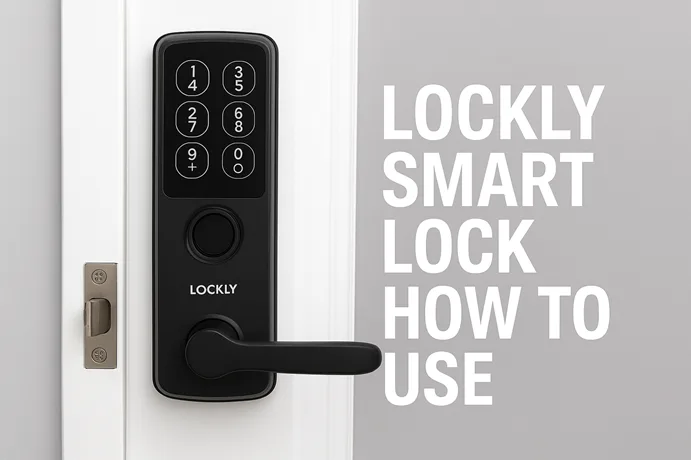
If you’ve recently purchased a Lockly smart lock and are wondering how actually to make it work, you’re not alone. Many new users find themselves searching for clear, step-by-step guidance on Lockly Smart Lock how to use — from installation and pairing to everyday operation. This guide was written exactly for that reason. Instead of skimming through scattered online videos or dense user manuals, here you’ll find a complete walkthrough that feels like talking to an expert installer right beside you.
The Lockly smart lock lineup—famous for its PIN Genie® rotating keypad, 3D fingerprint reader, and offline access codes—offers exceptional convenience and security when set up correctly. Knowing how to use the Lockly smart lock correctly makes all the difference, whether you’re installing it on your front door, company, or Airbnb space. So, let’s get started and make your smart lock both secure and easy to use on a regular basis.
- Before You Begin: What You’ll Need for Setup
- Physical Installation: Setting Up the Lock on Your Door
- Connecting the Lock to the Lockly App
- Adding Access Methods: Codes, Fingerprints, and Keys
- Everyday Use & Smart Features
- Troubleshooting Common Problems
- Maintenance & Battery Replacement
- Safety, Privacy, and Security Best Practices
- Advanced Integrations (Optional Enhancements)
- FAQs
- Conclusion
Before You Begin: What You’ll Need for Setup
Before putting the components on your door, let’s get your checklist in order.
- Make sure you have the correct model: e.g., Lockly Secure, Secure Plus, Secure Pro, or newer versions. The installation specifics may vary slightly.
- Gather tools: Phillips screwdriver, flat-head screwdriver, possibly a drill (only if a new door or additional holes are required). The manual notes that drilling isn’t strictly needed if your door already has the standard bore and strike.
- Confirm your door meets compatibility: door thickness, backset dimensions, and swing orientation (right or left) all matter. For example, Page 2 of the manual lists door thickness 35-50 mm and backset 60/70 mm.
- Download the Lockly Home App (or the version recommended for your model) ahead of time. Having the app ready before you power the lock helps avoid timing issues.
- Locate the VIP/activation card that came in the box; this includes initial codes and registration information. If you lose it, you may have issues later. (Confirmed in the user manual)
Once you have the door prepped, tools in hand, app installed, you’re ready to go.
Physical Installation: Setting Up the Lock on Your Door
Let’s get your lock physically installed—no fluff, just the clear steps.
Preparing Your Door
If your door has an older deadbolt fitting, remove that hardware first. The Lockly manual states: “If you are installing the Lockly Secure smart lock on an existing door, please remove existing door hardware and latch or bolts before installing the new lock.”
Check your door swing (does it open inward or outward? left-hand or right-hand?). The Lockly Secure series is compatible with both orientations—ensure the right setting in installation.
Installing the Deadbolt Assembly
- Use the provided template (included in your box) to mark drill holes if needed. But note: drilling is optional if your door already has the correct bore size.
- Align the latch so the bolt is fully extended (locked) before you mount the exterior assembly. This ensures proper rotation of the torque blade (required for correct sensor alignment).
- Mount the exterior keypad/assembly of the Lockly lock, routing the cable underneath the latch so it’s not pinched when you attach the interior part.
- Now attach the interior assembly (thumb-turn or lever, depending on model) and secure with screws.
Testing the Mechanism Before Tightening
Before you get carried away: manually turn the thumb-turn (inside) and test the bolt extension/retraction. If it doesn’t move freely, remove the covers and adjust until it moves smoothly. That step is crucial—installation misalignment is a frequent trouble source.
Powering the Lock
- Install the batteries (usually 4 standard AA or the set specified by your model). Many manuals instruct: “First install 3 of the 4 batteries. Before installing the last battery, press and hold the PROGRAM button while installing the last battery until you hear a beep from Lockly.”
- The lock will run a self-check and automatically set the door swing orientation. Don’t install the battery cover until after you’ve completed app pairing and setup.
- After powering up, test again manually: try keyless entry from the outside, thumb-turn from inside, and ensure the latch works.
Congrats—you’ve got your Lockly smart lock physically installed. Now we move to the software side.
Connecting the Lock to the Lockly App
Hardware installed? Good. Now you’ll make the connection between your lock and your phone/app so you can manage it remotely, add codes, and integrate smart features.
Downloading and Setting Up the Lockly Home App
- On your phone (iOS or Android), install the Lockly Home App (or whatever variant your model uses).
- Create or log in to your account. When you’re asked for the initial code, refer to the VIP/activation card that came in your box. That code is often required for pairing.
- Accept the app’s permissions (Bluetooth, location) when prompted.
Pairing via Bluetooth
- With the lock powered and the interior cover still off, open the app and follow “Add Lock” / “New Device” steps.
- The lock uses Bluetooth to make a secure connection. Once connected, you’ll be prompted to confirm installation and finish set-up.
- Sometimes, reviewers mention the Bluetooth window (time when pairing is allowed) can be brief, so make sure you are ready when installing the batteries.
Connecting to wifi / Secure Link Hub
- Some models include built-in wifi; others require the Lockly Secure Link Hub for remote access and voice assistant integration. Check your box contents.
- If a hub is required: position it within Bluetooth range of your lock, plug it into your router or power source, and follow the app instructions to link.
- Connect your lock to your home wifi network in the app (typically 2.4GHz). This enables remote unlock, notifications, and third-party smart-home integrations.
App Permissions and Privacy Tips
- For full functionality, you’ll need to grant the app Bluetooth and location access (especially if you want proximity unlocking).
- Set a strong app password or enable biometrics on your phone—this ensures only you manage user codes.
- Make sure your phone’s firmware and the Lockly app are kept up to date for security patches and bug fixes.
Once you’ve completed app pairing and network setup, you’re ready to add access methods.
Adding Access Methods: Codes, Fingerprints, and Keys
The fun part: starting to use the lock in daily life. This is where the combinations of convenience and security shine.
Setting Up PIN Codes with PIN Genie®
One of Lockly’s signature features is PIN Genie: the keypad displays numbers in a randomized layout each time you approach—this thwarts anyone from deciphering your code by smudge patterns or repeated entry.
- In the app, navigate to “Manage Access” → “Add Access Code”.
- Decide whether it’s a permanent code, one-time code, or scheduled code (e.g., guest access from 2 pm-5 pm).
- Once the code is active, test it at the keypad. The randomized layout will display, but you enter your number logically. (The support article says: “To enter your required digit, just simply press the circle where your number is shown.”)
- You can manage, edit or delete codes via the app.
Enrolling Fingerprints
For many users, the fingerprint sensor becomes the fastest way to unlock.
- In the app, choose “Add Fingerprint” (or go via the lock’s menu).
- You’ll be prompted to place each of your fingers on the sensor multiple times so it can capture full 3D details. The user manual allows up to 99 fingerprints for some models.
- Name each user if you like (e.g., “Mom”, “Child”, “Cleaner”) so you know who unlocked and when.
- Test a few times until you’re comfortable.
- You can delete fingerprints via the app or the interior panel when needed.
Creating Offline Access Codes™
One of the smarter features: even when the lock is not connected to the internet (or if you prefer not to share wifi), you can generate an Offline Access Code (OAC). This is ideal for temporary access (cleaners, guests) without giving full code or removing yourself from the system.
- In the app, select “Create Offline Access Code” → set expiry date/time → issue code and send to guest (SMS/email).
- The guest enters the code at the keypad, and the lock validates it locally.
- Once expired, the code is disabled.
Using Physical Keys & Mechanical Override
Don’t forget—your Lockly still retains a traditional key slot (or restricted key) for emergency fallback.
- Keep backup keys in a safe place (not the usual “under the mat”).
- Some models provide a 9-volt battery contact for emergency external power if your batteries die.
- Particularly useful for renters who may move locks or revert things later.
With access methods added, you’re fully set to use your lock in daily life.
Everyday Use & Smart Features
It’s one thing to install and enroll. It’s another to use your lock in a way that feels natural and reliable day after day.
- Locking/unlocking methods: you can use the keypad, fingerprint sensor, physical key, or the smartphone app (if connected).
- Auto-lock: In the app, you can configure the door to auto-lock after a set time (e.g.,5-300 seconds) so you never forget.
- Voice assistants: If you have Amazon Alexa, Google Home, or Apple Home (on compatible models), you can link your Lockly device and use voice commands like “Lock the front door.” Some newer models support Apple Home Key or even UWB hands-free unlocking.
- Activity logs & guest tracking: In the app, you can see who entered when, what method they used (code, fingerprint, key), and manage access rights.
- Notifications: You’ll get alerts if a scheduled code is used, if a fingerprint fails, or if the battery is running low.
- Tip: Test your unlock and lock methods for a week and make any minor adjustments (auto-lock timing, finger sensitivity, guest codes) so your experience becomes seamless.
Troubleshooting Common Problems
Even the best smart lock can be tripped up by real-world quirks—door misalignment, weak signal, or low battery. Here’s how to handle the most common issues.
Bluetooth or wifi Not Connecting
- Ensure your phone’s Bluetooth is turned on and you’re close to the lock (within a few feet).
- If using the Secure Link Hub, confirm the hub is powered & within range of both the wifi router and lock.
- Review the app’s troubleshooting steps or reset the connection. The user manual emphasises timing: insert the last battery and hold the PROGRAM button before the final battery for successful pairing.
Lock Orientation / Bolt Not Operating Correctly
- If the door is opening outward or the latch is misaligned, you may need to reorient the lock. For example, ensuring the bolt is fully extended before installation and the torque blade is vertical.
- Test manually: if the thumb-turn doesn’t engage properly or the latch scrapes the strike plate, loosen the screws and adjust the mount.
Fingerprint Not Recognized or Giving Errors
- Clean the fingerprint sensor surface—dirt or residue can interfere.
- Delete and re-scan fingerprints, ideally from slightly different angles and lighting.
- Check for firmware updates in the app—some models improved sensor performance in updates.
Factory Reset Procedure
If, for any reason, you need to clear all settings and start over (for example, moving to a new home or giving it to someone else), follow the factory reset steps in the user manual: hold the Program button while inserting the last battery, wait for the beep, then re-pair via app.
Good locks aren’t simply those that work once—they are those you trust to work every day. Troubleshooting is part of ensuring reliability.
Maintenance & Battery Replacement
Using the lock day in/day out means you’ll eventually need to maintain it.
- Most Lockly models run on AA batteries—installation manuals list expected lifespans (varies by model & usage).
- The app will alert you when battery levels are low—don’t ignore this.
- When replacing batteries: ensure you keep orientation correct, fresh batteries, and reset any settings if prompted.
- A clean sensor, keypad, and bolt mechanism will prevent wear and avoid frustration.
- Occasionally, check all access codes and fingerprints to ensure only authorised users remain set.
Safety, Privacy, and Security Best Practices
With great convenience comes the responsibility of good security hygiene.
- Avoid simple or predictable codes. With PIN Genie, the layout changes, but losing the code to someone still undermines your security.
- Delete fingerprints or codes from former tenants, ex-spouses, or long-gone guests.
- Use the app’s built-in logs and notifications to monitor access.
- If using voice assistants or remote unlocking, ensure your home network is secure (strong wifi password, router firmware updated).
- For locks with cloud connectivity: read the privacy policy—Lockly has documentation showing how data is managed. (Refer to the user manual)
- Use the “Privacy Mode” or cover the keypad if you’ll be away for extended periods.
- Register your product warranty — many manufacturers won’t service unregistered units.
Advanced Integrations (Optional Enhancements)
If you’re into smart-home automation, your Lockly lock can be more than just a front-door gadget.
- Voice control: Link via Amazon Alexa or Google Assistant. E.g.. “Alexa, lock front door.”
- Apple Home Key / UWB: Some newer Lockly models support Apple Home Key (unlock via iPhone/Apple Watch) and ultra-wideband “hands-free” unlocking as you approach.
- Matter / Home Assistant: For advanced users: if you have a Home Assistant or Matter ecosystem, check if your Lockly model supports local integrations.
- Automation routines: Example – when you say “Goodnight” to your voice assistant, it can lock the door, set the auto-lock shorter, and arm your security sensors.
- Guest access scheduling: Set codes for Airbnb guests or tradespeople with restricted time windows, then delete after use.
- A well-integrated smart lock becomes not just a door accessory—it’s a control point for home access security.
FAQs
How do I install a Lockly smart lock without a hub?
If your Lockly model includes built-in wifi (no hub required), you can skip the Secure Link Hub. After mounting the lock and powering it, pair via Bluetooth and then connect to your home wifi network in the app. For models that require the hub, plug the hub into your router, position it within Bluetooth range of the lock, and follow the app instructions.
How do I factory reset my Lockly smart lock?
Remove the battery cover, press and hold the PROGRAM button, then install the last battery while holding the button until you hear a beep. The lock will clear all codes, fingerprints and pairing. You’ll then re-pair the lock via the app as a new device. Check your specific manual for your model.
How do I add a new user or delete a fingerprint on my Lockly?
Open the Lockly Home app, select your device → Manage Access → Fingerprints. Add a new fingerprint by scanning; delete old ones through the user list. On the keypad/interior, you may also have a “Delete” mode—refer to your manual for exact steps under “Deleting Stored Fingerprints”.
Can I unlock my Lockly smart lock remotely?
Yes—if your model is connected to wifi (or through the Secure Link Hub) and paired with the app, you can lock/unlock via your phone anywhere with internet access. Without wifi, you’re limited to Bluetooth range or offline codes.
Is Lockly compatible with Apple Home Key or Matter?
Some of the newer models support Apple Home Key and ultra-wideband (UWB) unlocking. Check your specific model’s feature list. For example, Lockly’s 2025 announcements highlight Apple Home Key integration.
Conclusion
You’ve made it this far—great job. You now not only know how to use and set up your Lockly smart lock, but you understand the why behind every step. From physically mounting the device, to app pairing, enrolling codes and fingerprints, embracing smart-home integrations, and keeping things secure and up to date.
If you followed this guide, you’re well on your way to a reliable, frustration-free smart lock experience. And when you wake up one morning and hear that the door locked itself—because you configured auto-lock—you’ll know it was worth it.
So go ahead: install your Lockly, pair your phone, add your codes, test your fingers, set your routines—and walk out the door with peace of mind. Because when access is easy and secure, you get smart living done right.
Ready to buy? Before you click “Add to Cart”, double-check your door compatibility, pick the model with the features you’ll actually use (wifi vs hub, fingerprint vs keypad only), and keep this guide open as your companion.
Here’s to smarter, smoother home security—with Lockly, and you in control.