
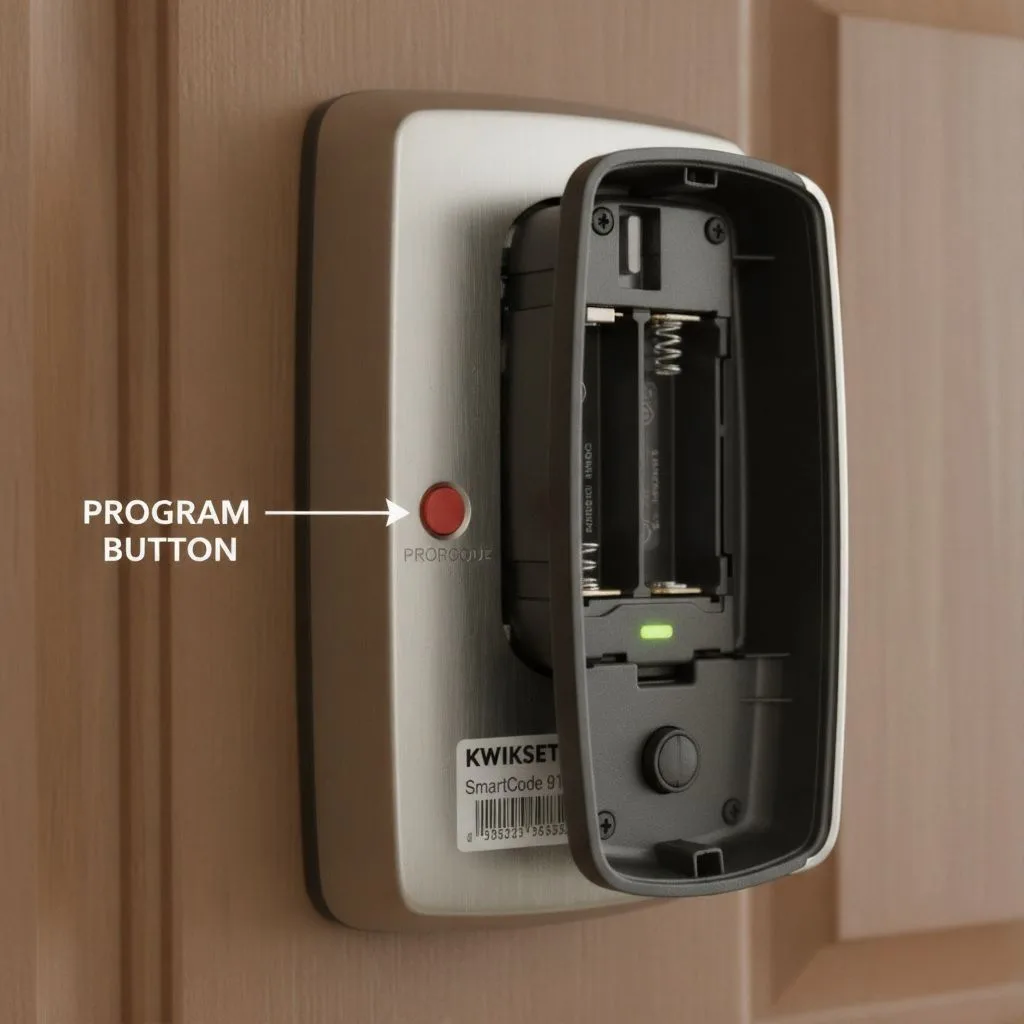
The search for a “Kwikset smart lock reset code” usually stems from frustration: a user code or the critical mastercode has been lost, or the gadget is experiencing continuous electronic difficulties. Many customers assume a simple four-digit sequence to unlock the system digitally, similar to an administrator override.
It is essential to clarify immediately that Kwikset does not utilize a single, universal digital reset code. Instead, the system relies on a specific physical procedure—typically involving holding the Program button or a dedicated Reset button—that forces the lock to return to its original factory default settings. This action is the true “reset.”
Why a Full Factory Reset is Necessary
A Factory Reset is a powerful administrative tool and should be used only when lower-impact solutions, like deleting a single code, are unavailable. The procedure completely wipes all customized data and settings, often requiring recalibration and reintegration into any connected smart home system.
The scenarios that necessitate this complete data wipe include:
- Forgotten Access: The user has forgotten all user codes and the Mastercode. The reset restores the factory default codes (commonly 0-0-0-0 for the Mastercode and 1-2-3-4 for a test user code).
- Change of Ownership: When moving or selling a home, a factory reset ensures all past access privileges and historical data are permanently deleted, giving the new owner a clean slate.
- Troubleshooting Advanced Errors: Persistent lock malfunction, failure to accept new codes, or repeated issues with door handing often require a full system initialization.
- Smart Home System Migration: If the lock (especially Z-Wave or Zigbee models) fails to properly pair or unpair from one Smart Home System to another, a reset clears all prior network affiliations, preparing it for re-inclusion.
Mandatory Pre-Reset Checklist
Careful preparation is required before starting any reset procedure to avoid failure and guarantee that the lock completes its post reset calibration.
1. Physical Readiness
The two most fundamental physical requirements for a successful electronic reset are simple yet frequently overlooked:
- Door Position: The door must be open and unlocked. This is mandatory because the final stage of the reset often involves the lock automatically performing the door handing process (calibration), requiring the latch bolt to extend and retract freely without binding against the door frame.
- Power Supply: Users must confirm they are operating with a fresh set of batteries. Low batteries are a pervasive cause of electronic failure during reset and subsequent calibration attempts. A low voltage state can prevent the lock’s motor from reliably completing the mechanical steps of the reset. Kwikset locks often signal a critically low battery status with 10 short beeps accompanied by 10 short red flashes.
2. The Digital Exclusion Imperative (Halo and Aura Locks)
For modern Kwikset smart locks, particularly Wi-Fi and Bluetooth-enabled models like the Halo or Aura, the security management extends beyond the lock’s physical shell. A common error is performing the physical reset while the lock remains actively linked to the mobile application.
The digital pairing process establishes a relationship between the lock’s unique serial number and the user’s online account, even storing associated codes and event history. If the physical factory reset is performed without first digitally deleting the lock:
- The lock may become deactivated in the app, showing as “offline”.
- More critically, if the Aura lock, for example, is deleted from the app while it is offline (out of Bluetooth range), some access codes may not be erased from the lock’s internal memory and could remain active until a subsequent manual reset is performed.
As a result, for all app-controlled locks, the important first step must be to launch the Kwikset App, navigate to the lock’s settings, and select “Delete Lock”. Following that, the user must remove the lock from the phone’s operating system Bluetooth settings (typically labelled “Forget Device”) to complete digital disengagement. This sequential process provides a clean slate, facilitating successful re-pairing later.
Kwikset Reset Action Impact Assessment
| Action Type | Deletes User Codes? | Deletes Mastercode? | Deletes Smart Home Pairing? | Requires Door Handing? |
| Factory Reset (30-Sec Hold) | YES (Restores default 1234) | YES (Restores default 0000) | YES | YES |
| Factory Reset (5-Sec Button + Code) | YES (Restores default 1234) | YES (Restores default 0000) | YES | YES |
| Delete All User Codes (via Mastercode) | YES | NO | NO | NO |
| Network Reset (Halo/Aura) | NO (Codes remain in lock) | NO | YES (Wi-Fi settings removed) | NO |
Model-Specific Factory Reset Procedures
Kwikset utilizes different physical mechanisms to initiate a factory reset, depending on the model’s electronic hardware generation and form factor. Guiding the user to the correct method is crucial for success.
Method A: The Universal 30-Second Program Button Hold
This mechanism is the most widely adopted standard across newer electronic Kwikset models, especially those using lever or touchscreen assemblies that integrate the programming interface into a single button.
Applicable Models
This procedure is standard for many SmartCode Levers, SmartCode Signature Series Deadbolts, the modern Halo and Aura locks, the Obsidian touchscreen deadbolt, and models like the SmartCode 888 (Z-Wave technology).
Step-by-Step Reset Procedure
- Remove Power: Begin by carefully removing the interior lock cover. Locate the battery pack and slide it out completely from the assembly.
- Hold and Reinsert: Locate the Program button on the interior assembly. This button is used for setting codes and initiating the reset. Press and HOLD the Program button continuously while simultaneously reinserting the battery pack.
- The Wait Period: Continue holding the Program button for an extended period—approximately 30 seconds. The lock will confirm entry into the factory reset sequence when the system emits one long beep and the Status LED flashes red.
- Confirm and Release: Once the visual and audio cues are confirmed, release the Program button. Then, press the Program button once more (a quick, single tap).
- Success Signal: The lock is officially reset when the LED indicator flashes green and the user hears two confirmatory beeps.
For Halo or Aura locks, this physical reset is only the halfway point. The user must now proceed to re-pair the lock to the Kwikset App to restore its Wi-Fi and smart functionality.
Method B: The 5-Second Reset Button and Default Code Entry
Older or specific electronic deadbolt lines utilize a separate physical Reset button for initial system wipes. This method is distinct because it requires entering a default programming code to complete the handing process immediately following the hardware reset.
Applicable Models
This procedure is commonly used for models such as the SmartCode 910, SmartCode 955, and the Powerbolt 2 series.
Step-by-Step Reset Procedure
- Initiate reset Hold: Ensure the door is open and unlocked. Locate the small, often recessed Reset button (usually near the battery pack or on the interior housing) and press and HOLD it for 5 seconds. The lock will emit three long beeps to indicate that the reset is initiated.
- Enter Default Programming Code: The reset has now wiped the system. To confirm the process and start calibration, the user must enter the default Programming Code, which has been restored to 0-0-0-0.
- Confirm Entry: Press the Lock symbol/button once. A single beep will be heard.
- Initiate door Handing/Calibration: Now, press the number 0, and then press the Lock symbol/button again. This final command triggers the critical door handing process, during which the latch bolt will extend and retract automatically.
- Success Signal: A successful reset and calibration are confirmed when the keypad flashes green and the system emits two beeps. If the keypad flashes red and three beeps are heard, the attempt was unsuccessful, often due to low batteries or an obstructed bolt.
Upon completion of this procedure, the lock will have restored its default Mastercode (0-0-0-0) and a default User Code (1-2-3-4). Changing these immediately is a required security measure.
Method C: Specialized Lock Resets (Premis & Kevo)
Certain high-security or specialized Kwikset smart locks use unique proprietary reset procedures:
- Kwikset Premis Deadbolt: The Premis is reset by pressing a specific internal button labeled Button “A” on the back panel and holding it for 20 seconds. A critical difference with this model is that while this method restores factory codes, it does not automatically trigger the door handing process. Handing must be performed manually afterwards.
- Kwikset Kevo Smart Lock: For Kevo models (1st and 2nd Gen), the reset involves pressing and holding down the dedicated internal reset button for 10 seconds until the lock beeps and the face LEDs flash red. Note that a Kevo reset requires the user to re-enrol all associated Owner phones and fobs and resend eKeys, although the eKeys themselves never expire.
Kwikset Factory Reset Quick Reference by Model Mechanism
| Kwikset Lock Mechanism Group | Example Models | Reset Location/Method | Required Hold Time | Post-Reset Requirement |
| Battery Removal/30-Sec Hold | SmartCode Lever, Halo, Aura, Obsidian | Program Button (Interior) | 30 Seconds | Door Handing + App Re-Pairing |
| 5-Sec Reset Button + Code | SmartCode 910, 955, Powerbolt 2 | Reset Button (Interior) | 5 Seconds | Door Handing + Default Code Change |
| Specialized Button Hold | Premis | Button ‘A’ (Interior Back Panel) | 20 Seconds | Manual Door Handing |
| Kevo Touch-to-Open | Kevo 1st/2nd Gen | Reset Button (Interior) | 10 Seconds | Re-enroll Phones/Fobs |
Click here to read more about Programming Kwikset SmartCode 909
Calibration, Pairing, and Security
The process does not end when the lock is fully returned to its factory condition. Three critical phases must be completed including recalibration, timely security updates, and smart home reintegration.
The Door Handing Process (Calibration)
The Door Handing process is the physical calibration required after a factory reset. The lock’s electronics must determine whether the deadbolt should be rotated clockwise or counterclockwise to lock the door (left or right orientation). Without this procedure, the lock will frequently fail to function properly, resulting in latch bolt jamming, key resistance, or electrical failure.
If the reset method (like Method A) did not automatically trigger calibration the user must perform the standard handling procedure:
- Preparation: Remove the battery cover and the battery pack.
- Initiation Sequence: While holding the Program button, reinsert the battery pack. Release the Program button immediately upon reinsertion.
- Execution: Press the Program button once more. The lock will enter the calibration mode, causing the latch bolt to drive excessively—extending and retracting fully in both directions—to determine the door’s orientation.
- Confirmation: The lock will emit a successful beep, and the process is complete.
Troubleshooting Door Handing Failure
Handing failures are common and often stem from mechanical issues, not electronic ones. If the bolt fails to move or the lock emits three unsuccessful beeps the user should investigate the physical installation:
- Latching Alignment: The latch bolt and the strike plate may be misaligned, causing the bolt to bind during movement.
- Torque Blade Tension: A common deep-level mechanical issue is tension placed on the torque blade (the metal piece connecting the exterior cylinder to the interior mechanism) by the mounting plate. If the key cannot rotate smoothly, remove the interior assembly, loosen the mounting plate screws, and reposition the plate to relieve tension on the blade.
- Clutch Disengagement: If the interior turnpiece feels loose or fails to rotate the latch, the clutch may have disengaged. The solution is to remove the interior cover and forcefully rotate the turnpiece 180 degrees clockwise until an audible click is heard, thereby re-engaging the clutch.
Securing Your New Lock
The reset process restores the factory default codes to ensure the user can regain entry. However, these codes represent an immense security vulnerability and must be changed immediately.
The Mastercode Security Imperative
The default Mastercode is typically 0-0-0-0, and the default User Code is 1-2-3-4. Security experts universally recommend deleting the default user code and establishing a new, robust Mastercode that is kept secret. The Mastercode is the administrative key used to add, delete, and manage all other user codes.
To change the Mastercode on most SmartCode models:
- Ensure the lock is unlocked and the door is open.
- Enter the existing Mastercode (e.g., 0-0-0-0).
- Press the Lock button once.
- Press the number 7, then press the Lock button again.
- Enter a new 4- to 10-digit Mastercode.
- Press the Lock button. Two beeps confirm success.
Smart Home System Reintegration
For locks previously connected to platforms like Z-Wave, Zigbee, or dedicated Wi-Fi apps, the factory reset necessitates re-pairing (Inclusion).
- Exclusion Check: If the lock was previously connected to a separate hub (for example, a neighbor’s Z-Wave network during a previous installation attempt), it is critical to do a general Exclusion or Unpair operation on the smart home hub, even if the lock seems unattached. This assures that the lock is absolutely free of any latent network metadata.
- Pairing: Follow the specific Inclusion instructions for the chosen smart home controller. Some Z-Wave systems, for example, require the lock to be within 12 inches of the controller during the pairing process to guarantee signal integrity. For Halo/Aura, follow the pairing instructions within the Kwikset app.
Advanced Code Management
The user searching for a “reset code” often needs to delete or change an access code. If the Mastercode is still known, performing a full factory reset is unnecessary, overly complex, and destroys all calibration and pairing data. Using the Mastercode to manage access provides a far less disruptive solution.
Deleting and Changing Codes Without a Factory Reset
Kwikset locks have internal programming sequences that allow for granular control over user codes, assuming the administrative Mastercode is enabled and understood.
Enabling the Mastercode
The Mastercode acts as a layer of security, allowing code management without requiring physical access to the interior Program button. To enable or change the Mastercode on many SmartCode models: press and hold the Program button for about 5 seconds until the keypad flashes green. Enter the new Mastercode, press Lock, re-enter the code, and press Lock again.
Deleting a Single User Code
If only one code needs removal (e.g., a contractor’s temporary code):
- Ensure the door is open. Press the Program button once.
- Enter the active Mastercode, then press the Lock symbol/button.
- Enter the specific user code to be deleted, then press the Lock symbol/button.
- Re-enter the user code to be deleted, then press the Lock symbol/button. A green flash and one beep confirm success.
Deleting All User Codes at Once (The Six Nines Trick)
Suppose the user needs to wipe all user access codes quickly while preserving the administrative Mastercode and the lock’s calibration settings. In that case, Kwikset provides a fast administrative override, often referred to as the “six nines trick”:
- Ensure the door is open. Press the Program button once.
- Enter the active Mastercode, then press the Lock symbol/button.
- Enter the sequence 9-9-9-9-9-9 (six nines), then press the Lock symbol/button.
- Re-enter the sequence 9-9-9-9-9-9, then press the Lock symbol/button. If successful, all user codes are deleted, but the Mastercode remains active.
V. Troubleshooting Common Reset and Operational Errors
Electronic and electro-mechanical systems inevitably encounter errors. For quick diagnosis and troubleshooting understanding the audible and visual signals generated by the Kwikset lock is critical.
Diagnosing Kwikset Status Lights and Beeps
The lock’s status LED and accompanying beeps provide immediate feedback on both operational status and programming attempts:
- Low Battery Warning: This is the most common operational failure point. The system announces low battery with 10 short beeps and 10 short red flashes. Low voltage prevents the motor from operating reliably, guaranteeing failure during reset or door handling.
- Lockout Mode (Security Feature): If a party enters three consecutive incorrect user codes, the security protocol engages. The keypad or touchscreen will flash red and enter a 60-second lockout mode, preventing further entry attempts. This essential feature protects against unauthorized brute-force code guessing.
- Programming Unsuccessful: A failure during code entry or administrative procedures is signalled by three short beeps and three short red flashes. This typically means an incorrect sequence was entered, the Mastercode was invalid, or the lock timed out (if no button is pressed for five seconds, the system times out, and the procedure must be restarted).
- Cylinder Misprogrammed (Mechanical Error): A user might attempt an electronic reset when the issue is mechanical. If the key inserted into the cylinder fails to rotate, the cylinder may have become misprogrammed during a prior SmartKey re-keying attempt. This occurs if the key was not fully inserted or was accidentally pulled out while rotating to the home position. This requires a specialized re-key recovery procedure, not an electronic factory wipe.
- Door Handing Process Failure: If the latch bolt fails to move during calibration, potential culprits include physical binding, misalignment of the latch and strike, or excess tension on the torque blade from the interior mounting plate. These physical obstructions must be resolved before the electronic door handing procedure can succeed.
Frequently Asked Questions (FAQ)
What happens immediately after a Kwikset Factory Reset?
A Factory Reset deletes all user codes, deletes the Mastercode, and resets them to the default administrative code (0-0-0-0) and default user code (1-2-3-4). Additionally, the lock’s memory of door orientation (handing) and any smart home or Wi-Fi pairings are erased. The user must immediately perform the door handing process and change the default codes.
How do I change the default Mastercode (0-0-0-0) after a factory reset?
After the reset restores the default Mastercode of 0-0-0-0, it is critically important to change it. Enter the default Mastercode (0-0-0-0), press the Lock button, press 7, press the Lock button, then enter your new desired Mastercode, and press the Lock button again.
Can I reset the lock if the batteries are dead or extremely low?
No. A successful factory reset relies on the motor completing internal mechanical cycles, especially during the door handing stage. Low batteries will not supply enough voltage, causing the lock to fail the reset (indicated by three beeps and red flashes). The batteries must be replaced with a fresh set before attempting the procedure.
I have a Halo or Aura lock. Is it mandatory to remove it from the Kwikset App before resetting?
Yes, with current app-managed locks like as the Halo or Aura, the lock must be deleted from the Kwikset App as well as from your phone’s Bluetooth settings (“Forget Device”) prior to conducting the physical reset. This prevents the lock from being disabled or appearing as an orphaned device, complicating re-pairing and perhaps leaving codes active in memory.
What is the purpose of the Door Handing process?
The Door Handing process is the lock’s calibration stage, where the internal motor learns whether the door is left-swinging or right-swinging. This allows the latch bolt to extend and retract smoothly during normal operation. Handing is performed after every factory reset to ensure alignment.
What if I only want to delete one user code, not the entire lock?
If the Mastercode is known, a full reset is unnecessary. The user can perform the specialized single code deletion sequence by using the Mastercode and the Program button to specifically target and remove only one user code while preserving all other settings and pairings.
My keypad is flashing red and beeping three times. What does that signify?
Three short beeps accompanied by three short red flashes indicate that the most recent programming attempt or electronic command was unsuccessful. Common causes include entering an incorrect code in the sequence, the lock timing out, or insufficient battery power.
If I reset my Kwikset Kevo lock, do I lose my eKeys?
A Kwikset Kevo system reset requires the user to re-enrol the owner’s phone and all associated fobs. However, the system’s architecture ensures that the eKeys themselves never expire, meaning they will still be available for resending to users after the system reset is completed.
Conclusion
Understanding the factory reset procedure for a Kwikset smart lock is critical for maintaining security and troubleshooting complex technical difficulties. The study indicates that the search query’s resolution—a “Kwikset smart lock reset code”—is not a digital key, but rather a strong, model-specific physical sequence meant to return the lock to its secure, known condition. The success of this process hinges entirely on meticulous preparation, especially ensuring high battery voltage and digitally excluding app-controlled locks before wiping the hardware.
Kwikset distinguishes itself in the highly competitive smart lock market—which includes robust competitors like Schlage, August, and Ultraloq —by balancing high security with reliable, documented troubleshooting steps. The integration of patented technologies like SmartKey Security™ provides a robust mechanical defence against advanced lock-picking techniques. When paired with the Mastercode’s systematic electronic control and different reset methods, Kwikset provides a comprehensive defence system. Furthermore, Kwikset’s commitment to durability is demonstrated by key models receiving the high ANWI/BHMA Grade 1 accreditation, which indicates outstanding operating strength and endurance.
The ability to rapidly and reliably reset, recalibrate (via Door Handing), and re-pair these devices ensures that a single technological hitch or lost code does not permanently impair home security.
If this deep dive into restoration and security has demonstrated the level of control and reliability Kwikset engineering offers, consider taking the next step toward comprehensive home protection. The latest models, such as the Kwikset Halo Wi-Fi Smart Lock, merge these proven physical and electronic security procedures with seamless remote management, ensuring peace of mind whether the homeowner is across town or across the globe.
Don’t just reset your lock—upgrade your entire security perimeter. Click here to explore the full range of Kwikset Smart Locks and secure your home with the industry’s most reliable technology today.