
Meta Description: Learn how to reset smart bulbs from Philips Hue, LIFX, Wyze & more. Quick troubleshooting steps to fix connection issues and get your lights working again.
Picture this: You walk into your living room, ask Alexa to turn on the lights, and… nothing. Your smart bulb that worked perfectly yesterday now acts like it’s never met your WiFi network before. Frustrating, right? I’ve been there more times than I’d like to admit, standing in the dark, wondering if I should go back to regular light switches.
Here’s the thing about smart home technology—when it works, it feels like living in the future. When it doesn’t, you’re ready to throw every connected device out the window. But before you do that, let me show you how to reset smart bulbs and get your lighting back under control. This guide covers everything from the quick five-second fix to the nuclear option when nothing else works.
Whether you’re dealing with Philips Hue, LIFX, Wyze, or any other brand, I’ll walk you through the exact steps that actually solve the problem instead of wasting your time.
- Why Your Smart Bulb Actually Needs a Reset (And When)
- How to Reset Smart Bulb
- Brand-Specific Reset Instructions That Actually Work
- Reconnecting Your Reset Bulb to Your Smart Home System
- When a Simple Reset Won't Cut It: Advanced Troubleshooting
- Preventing Future Reset Headaches
- Frequently Asked Questions
- Conclusion
Why Your Smart Bulb Actually Needs a Reset (And When)
Smart bulbs aren’t like their traditional counterparts. They’re essentially tiny computers screwed into your light fixtures, which means they can get confused, lose their connection, or decide to take an unscheduled vacation from your network.
You’ll need to reset a smart bulb when you notice these telltale signs. The bulb stops responding to your voice commands or app controls. You may see it flickering randomly like it’s trying to communicate in Morse code. Perhaps you’ve switched internet providers or got a new router, and now your bulbs are orphaned from your network. Or you’re moving and want to clear all settings before the new homeowner inherits your smart home setup.
The good news? Most connection issues stem from the bulb losing its network credentials rather than actual hardware failure. Think of it like your phone forgetting your WiFi password—annoying but fixable.
Sometimes the issue isn’t with the bulb at all. Your WiFi router might be having a bad day, or your smart home hub decided to update itself at 3 AM and forgot to tell your bulbs about it. Before you start frantically resetting everything, take a breath and figure out if it’s genuinely a bulb problem or something upstream in your network.
How to Reset Smart Bulb
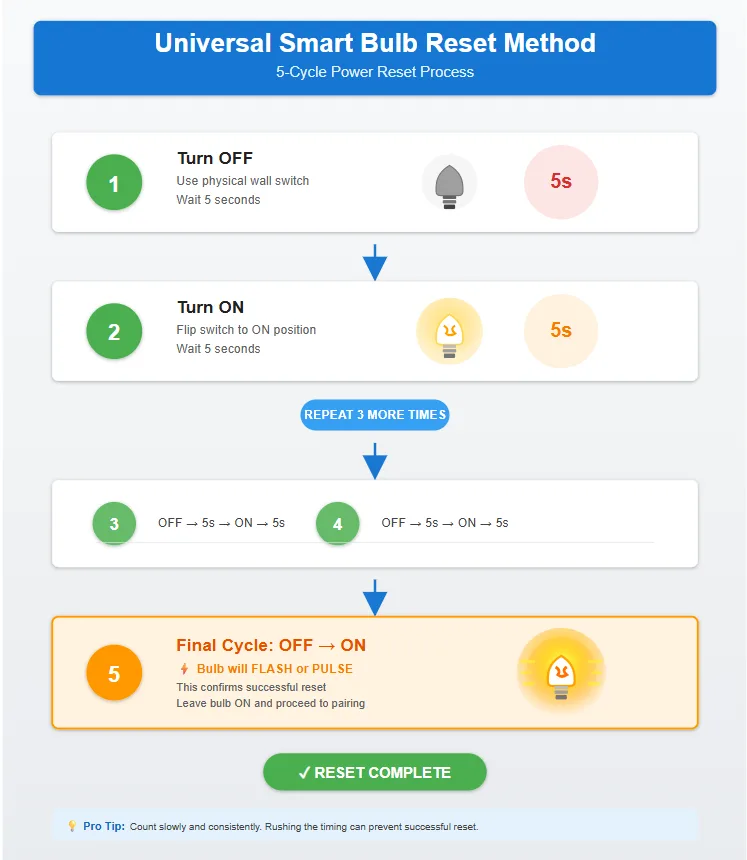
Let me share the magic trick that works for about 80% of smart bulbs out there. It’s called the power cycle reset, and it’s stupidly simple—which is exactly why it works so well.
Here’s what you do. Turn the bulb off using the physical light switch, not your app. Wait five seconds while you count slowly. Now turn it back on. Off again for five seconds. On again. Keep repeating this on-off pattern for five to six cycles. Most bulbs will flash or change brightness during the last cycle to signal they’ve reset successfully.
The timing matters more than you’d think. Those five seconds give the bulb’s capacitors time to discharge fully, which forces a complete power cycle of its internal systems. Rush through it like you’re flipping a strobe light, and you’ll confuse the bulb even more.
Some people swear by the three-cycle method, others insist on seven. After resetting dozens of bulbs across multiple brands, I’ve found five or six cycles hits the sweet spot. The bulb will usually give you a visual cue—maybe a bright flash, a slow fade, or a colour change—telling you it worked.
Once you see that confirmation signal, leave the bulb powered on. It’s now in pairing mode, ready to connect to your network like it’s fresh out of the box. Please don’t turn it off again, or you’ll have to start over.
Brand-Specific Reset Instructions That Actually Work
Now let’s get into the nitty-gritty of individual brands, because of course, each manufacturer decided to do things slightly differently. Why make life simple, right?
Resetting Philips Hue Bulbs
Philips Hue bulbs are probably the most popular smart bulbs out there, and they’re generally reliable—until they’re not. If you have the Hue Bridge, there’s an easy way and a hard way to reset these bulbs.
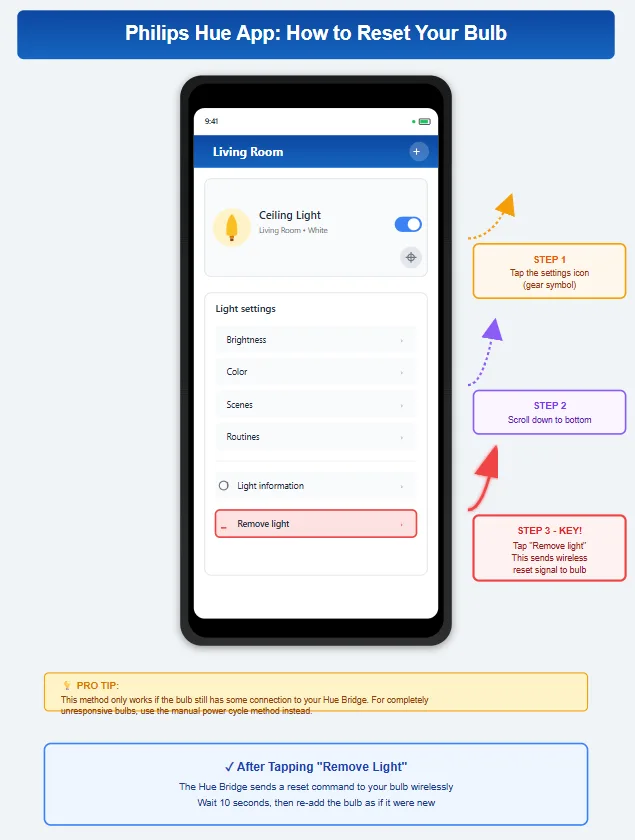
The easy method uses the Hue app itself. Open your app, find the bulb that’s misbehaving, tap the settings icon, scroll down, and select “Remove light.” The bridge sends a reset signal wirelessly. Done. This works beautifully when the bulb is still connected to your system.
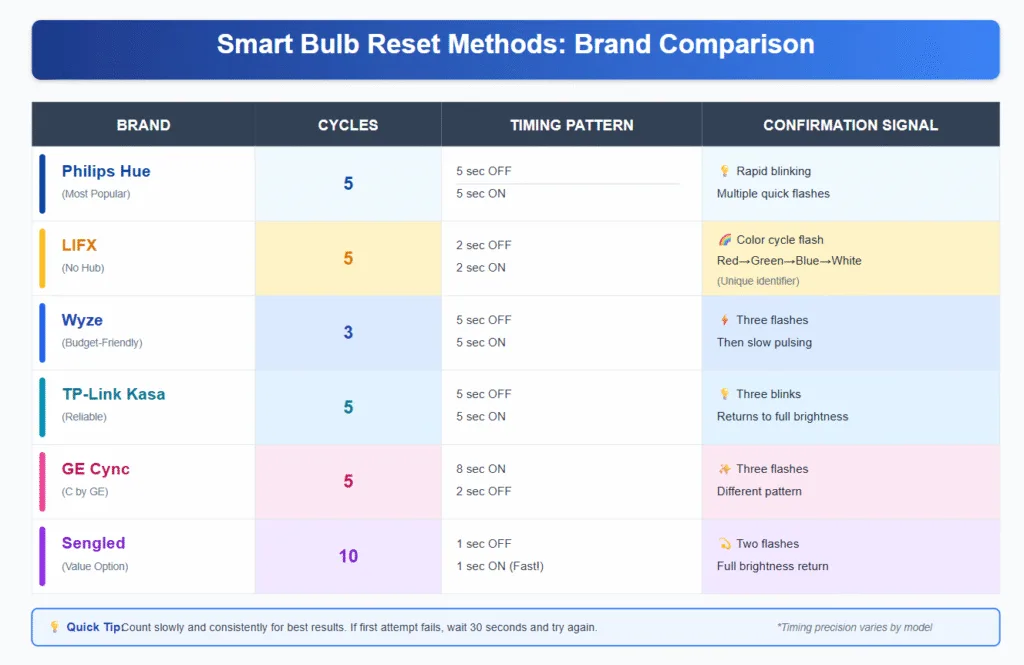
But when the bulb has gone completely rogue? Time for the manual reset. Use the power cycle method I mentioned earlier—five cycles of off for five seconds, on for five seconds. On the fifth cycle, the Hue bulb should blink rapidly to confirm it’s reset. If you have a Hue Dimmer Switch, you can also hold it close to the bulb and press the setup button for ten seconds.
LIFX Reset Procedure
LIFX bulbs take a different approach since they don’t require a hub. They connect directly to your WiFi network, which is convenient until your network changes and they’re lost in digital space.
The reset process for LIFX follows the power cycle method, but with a specific pattern. Turn the bulb on for two seconds, off for two seconds, and repeat this five times. On the fifth cycle, the bulb will flash different colours—red, green, blue, white—in rapid succession. That’s your confirmation. The bulb has wiped its memory and is ready to pair again through the LIFX app.
If the standard reset doesn’t work, LIFX has a nuclear option called a hard reset. Keep the bulb on and unscrew it slightly until it turns off, but maintains electrical contact. Then quickly screw it back in. Repeat this ten times. Yes, ten. Your arm will get tired. But this deeper reset clears absolutely everything from the bulb’s memory.
Wyze Bulb Reset Steps
Wyze bulbs are budget-friendly and surprisingly capable, but they can be particular about resets. The company designed them with a straightforward reset process that usually works on the first try.
Turn the bulb off for five seconds, then on for five seconds. Complete this cycle three times. On the third cycle, the Wyze bulb will flash three times and then pulse slowly. That pulsing means it’s in pairing mode and ready to reconnect through your Wyze app.
One quirk I’ve noticed with Wyze bulbs—they really don’t like power fluctuations during the reset process. If your house has flickering power or you’re using a dimmer switch (which you shouldn’t with smart bulbs anyway), the reset might fail. Make sure you’re working with a stable power source.
TP-Link Kasa Smart Bulbs
TP-Link Kasa bulbs are reliable workhorses in the smart home world. They reset using a similar power cycling method, but the pattern differs slightly from other brands.
Execute five cycles of off for five seconds and on for five seconds. The Kasa bulb will blink three times during the final cycle, then return to full brightness. This signals a successful reset. From there, open your Kasa Smart app and add the bulb like it’s new.
Kasa bulbs have one advantage—if you can still access the bulb through the app even though it’s misbehaving, you can perform a software reset without all the light switch gymnastics. Go into the bulb’s settings, find “Remove Device,” and confirm. The app handles everything remotely.
GE Cync and C by GE Bulbs
The GE Cync line (formerly C by GE) uses a unique reset method that feels excessive, but it works consistently.
Turn the bulb on for eight seconds, off for two seconds. Repeat this pattern five times. On the fifth cycle, the bulb will flash three times to confirm the reset. The timing is more precise with these bulbs—if you’re off by a couple of seconds, it might not register.
GE also sells different versions of their bulbs—some connect directly to WiFi, others work with Bluetooth, and some require their proprietary hub. Make sure you know which version you have because the reconnection process varies. Check your bulb’s packaging or the GE Lighting website if you’re not sure.
Sengled Smart Bulbs
Sengled bulbs are another budget option that punches above their price point. Their reset process is mercifully simple compared to some brands.
Power cycle the bulb ten times—yes, ten—with each cycle lasting about one second on and one second off. After the tenth cycle, the bulb will flash twice and return to full brightness. This indicates a successful reset, and the bulb is ready for pairing through the Sengled Home app.
Some Sengled bulbs work with their hub, while others connect via Bluetooth or WiFi directly. The reset process remains the same regardless, but you’ll need to know your bulb type for reconnection.
Reconnecting Your Reset Bulb to Your Smart Home System
Alright, you’ve successfully reset the bulb. Congratulations! Now comes the part where you actually get it back into your smart home ecosystem.
First things first—your bulb is now in pairing mode, acting like a brand new device. Open the companion app for your bulb’s brand. Most apps have an “Add Device” or “Add Light” button prominently displayed. Tap that and follow the prompts.
For hub-based systems like Philips Hue or Samsung SmartThings, make sure your hub is powered on and connected to your network before starting. The app will search for new devices, and your reset bulb should appear within 30 seconds. If it doesn’t show up immediately, give it a full minute—sometimes the handshake between devices takes time.
For WiFi-connected bulbs like LIFX or TP-Link Kasa, the process involves temporarily connecting your phone to the bulb’s own WiFi network. The bulb creates a temporary network with a name like “LIFX_XXXXX” or “TP-Link_Smart Bulb.” Connect to that network through your phone’s WiFi settings, then jump back to the app. The app will guide you through connecting the bulb to your actual home network.
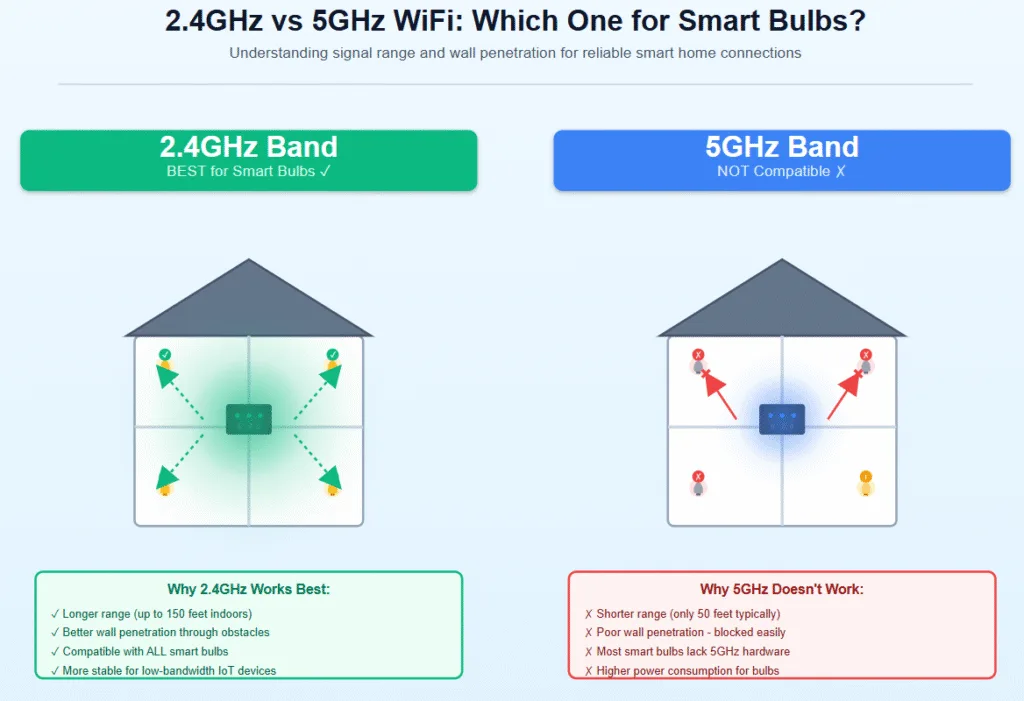
Here’s a pro tip that saves headaches—make sure you’re on your 2.4GHz network, not 5GHz, when setting up smart bulbs. Most smart bulbs only work with 2.4GHz WiFi bands because they need the longer range and better wall penetration that 2.4GHz provides. The 5GHz band is faster but has a shorter range and won’t work with most smart home devices.
After the bulb connects to your WiFi, you’ll need to reintegrate it with your voice assistants. If you use Amazon Alexa, open the Alexa app, go to Devices, select the plus icon, and choose “Add Device.” Alexa will discover your newly connected bulb. For Google Assistant, open the Google Home app, tap the plus sign, select “Set up device,” and choose “Works with Google.” Find your bulb’s brand and link your accounts.
The bulb will also need to rejoin any automation routines or scenes you created. This is the annoying part—you’ll probably need to recreate or edit these automations manually since the bulb has a new device ID after the reset. Think of it like when you get a new phone number and have to update all your contacts.
When a Simple Reset Won’t Cut It: Advanced Troubleshooting
Sometimes you do everything right, and the stupid bulb still won’t cooperate. This is when you need to look beyond the bulb itself.
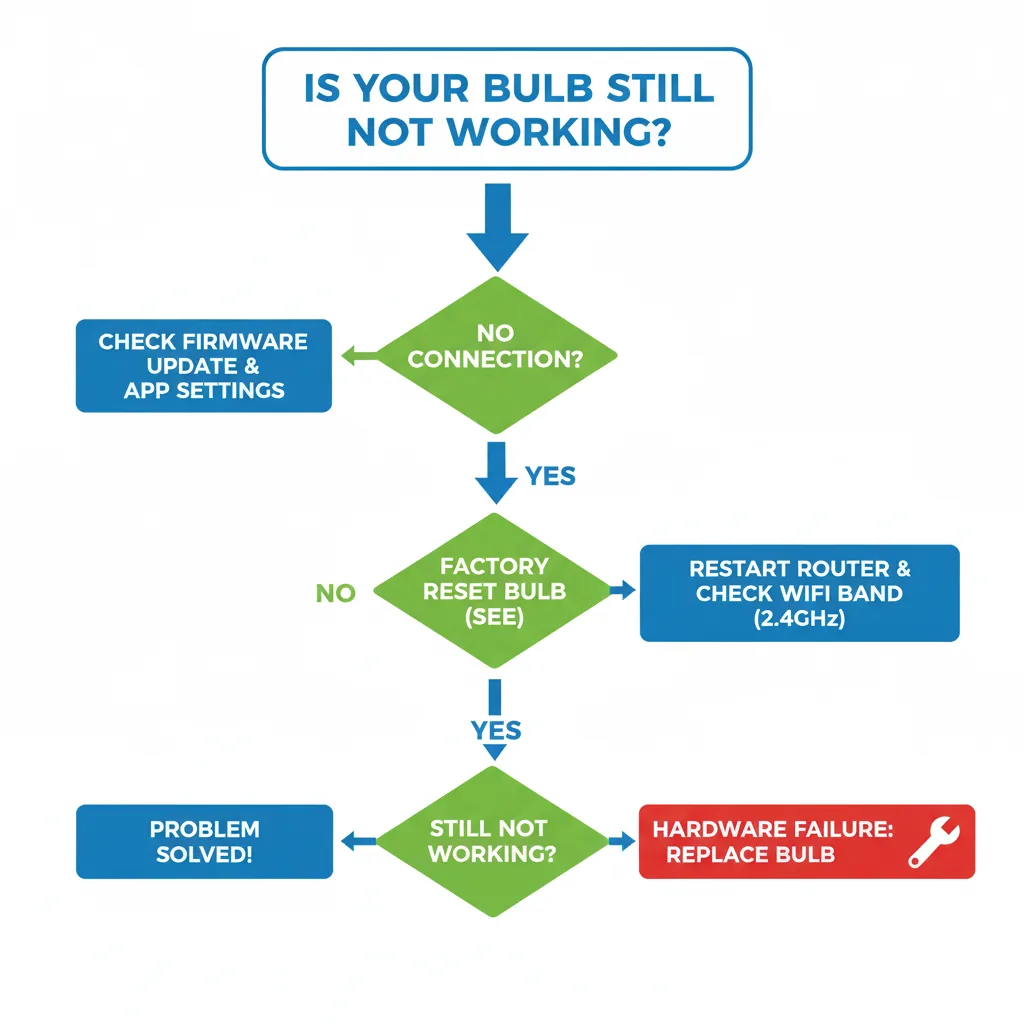
Start with your router and network infrastructure. I can’t tell you how many times I’ve chased my tail troubleshooting a smart bulb, only to discover my router was the problem. Try unplugging your router, waiting 30 seconds, and plugging it back in. This clears the router’s connection table and often resolves mysterious device connection issues.
Check if your router’s firmware needs updating. Outdated router firmware can cause compatibility issues with smart home devices. Log in to your router’s admin panel (usually at 192.168.1.1 or 192.168.0.1) and look for firmware update options. Your router manufacturer’s website will have instructions specific to your model.
Sometimes the issue is network congestion. If you have 30 smart devices all trying to connect to the same router, your network might be overwhelmed. This particularly affects 2.4GHz networks since they have fewer channels and more interference. Consider upgrading to a mesh WiFi system like Eero or Google Nest WiFi that better handles multiple device connections.
Firmware issues on the bulb itself can cause persistent problems. Most smart bulbs update firmware automatically, but sometimes an update fails partially, leaving the bulb in a weird half-updated state. Check your bulb’s app for manual firmware update options. Force an update even if it says the bulb is current—this can overwrite corrupted firmware files.
Physical hardware failure is rare but happens. If you’ve tried every reset method, verified your network is functioning perfectly, and the bulb still won’t work, it might be genuinely broken. Before you throw it away, try the bulb in a different fixture to rule out wiring issues in your original socket. Also check if it’s still under warranty—most manufacturers offer one to two-year warranties.
One weird issue I’ve encountered multiple times—light switch interference. Some modern light switches, particularly dimmer switches or “smart” switches, can interfere with smart bulbs. Smart bulbs need constant power to maintain their WiFi connection. A dimmer reduces voltage, which confuses the bulb’s circuitry. If your smart bulb is connected to a dimmer switch, replace it with a standard on-off switch.
Preventing Future Reset Headaches
Let’s talk about keeping your smart bulbs happy so you don’t have to do this reset dance every few months.
Network stability is everything. Your smart bulbs need a strong, consistent WiFi signal to function properly. If your bulbs are far from your router or separated by thick walls, consider adding a WiFi extender or upgrading to a mesh network system. Dead zones in your home will cause intermittent connection problems that drive you crazy.
Create a dedicated network for your smart home devices if your router supports multiple SSIDs. This separates your smart home traffic from your laptop streaming videos or your kids gaming online. Less congestion means more reliable connections. Some routers even let you prioritize certain devices—give your smart home hub priority over less critical devices.
Avoid the temptation to buy the absolute cheapest smart bulbs you find on Amazon from brands you’ve never heard of. I learned this the hard way. These no-name bulbs often have terrible firmware, unreliable connectivity, and zero customer support. Stick with established brands that actively update their software and have responsive customer service. Spending an extra $5 per bulb now saves hours of frustration later.
Keep your smart home ecosystem simple when possible. Mixing too many different brands and platforms creates compatibility nightmares. If you start with Philips Hue, try to stick with Hue-compatible devices. If you go the LIFX route, build around that ecosystem. Every additional platform you add is another app to manage and another potential point of failure.
Label your bulbs clearly in your app. Trust me on this—when you have 15 bulbs spread across your house, you don’t want to guess which “Living Room Light 3” is the one that’s not working. Give them descriptive names like “Kitchen Island Left” or “Bedroom Reading Lamp.” Future, you will be grateful when troubleshooting.
Create a smart home documentation file with all your device information, WiFi passwords, app login credentials, and any custom configurations. When something goes wrong at midnight, you won’t want to search through old emails for your account password or remember which configuration setting fixed that weird flickering issue six months ago.
Frequently Asked Questions
Why won’t my smart bulb reset even after multiple power cycles?
The most common reason is inconsistent timing during the power cycles. Each brand requires specific timing—usually five seconds on and five seconds off. Count slowly and consistently. If that doesn’t work, you might be dealing with a damaged bulb or one that’s received a corrupted firmware update. Also, verify you’re using a standard on-off switch, not a dimmer, as dimmers prevent proper resets.
Do I need to reset my smart bulb when changing WiFi networks?
Yes, absolutely. Smart bulbs store your WiFi credentials internally, so they can’t connect to a new network without being reset first. This applies when you get a new router, change your WiFi password, or move to a new location. The reset clears the old network information and allows the bulb to pair with your new network through the app.
Can I reset a smart bulb without the app?
Definitely, the power cycling method works without any app access—that’s why it’s so useful. You’re physically forcing the bulb to reset through the power switch. However, you’ll still need the app afterwards to reconnect the bulb to your WiFi network and smart home system. The physical reset clears the bulb’s memory.
Will resetting my smart bulb delete my scenes and automations?
Resetting the bulb itself doesn’t delete scenes or automations stored in your hub or app, but the bulb will be removed from those automations since it gets a new device ID. You’ll need to edit your scenes and routines to add the bulb back in after reconnecting it. This is one of the annoying parts of resetting, but it’s necessary to fix persistent problems.
How long does a smart bulb stay in pairing mode after a reset?
Most smart bulbs remain in pairing mode for about three to five minutes after a successful reset. During this window, they’re broadcasting and ready to connect through your app. If you miss this window, the bulb exits pairing mode and returns to normal operation—meaning you’ll need to reset it again to pair it. Work quickly after resetting to avoid this issue.
Why does my smart bulb keep losing connection to WiFi?
Frequent disconnections usually indicate a weak WiFi signal, network congestion on the 2.4GHz band, or router issues rather than bulb problems. Check the signal strength where your bulb is located. If it’s more than 30 feet from your router with walls in between, the signal might be too weak. Router firmware updates or positioning changes often solve this better than repeatedly resetting the bulb.
Is there a difference between a soft reset and a hard reset for smart bulbs?
Some brands distinguish between soft resets (which preserve certain settings) and hard resets (which wipe everything). However, most consumer smart bulbs only have one reset method that clears all settings. The power cycling method described in this guide performs a complete reset, returning the bulb to the factory default state, regardless of what manufacturers call it.
Can resetting a smart bulb too many times damage it?
The reset process itself won’t damage your bulb—it’s just power cycling, which is normal operation. However, excessive resets might indicate an underlying problem with either the bulb, your network, or your home’s electrical system. If you’re resetting the same bulb monthly, diagnose the root cause rather than continuing the reset cycle. Frequent resets are a symptom, not a solution.
Conclusion
Look, dealing with smart bulb connectivity issues is nobody’s idea of a good time. But now you’ve got the complete playbook for resetting smart bulbs across every major brand, troubleshooting when things go wrong, and preventing problems before they start.
The beauty of smart bulbs is the convenience they bring to your daily life. Imagine walking into a perfectly lit home without touching a switch, or having your lights gradually brighten to wake you naturally in the morning. But that convenience only works when your bulbs actually connect and respond consistently.
Remember that most issues come down to network problems or simple connectivity hiccups rather than failed hardware. Start with the simple power cycle reset method before moving to more complex troubleshooting. Give your bulbs a stable network environment, keep firmware updated, and stick with reputable brands that stand behind their products.
The smart home technology landscape keeps evolving. Today’s smart bulbs are more reliable than models from even two years ago, and they’ll continue improving. But physics and WiFi limitations won’t change—strong signals, stable networks, and proper setup remain essential.
Ready to upgrade your smart lighting setup with more reliable bulbs? Consider investing in established brands like Philips Hue, LIFX, or TP-Link Kasa that offer robust apps, regular updates, and responsive customer support. These brands cost slightly more upfront but save you countless hours of troubleshooting and frustration. Your future self, standing in a well-lit room with lights that actually respond to commands, will thank you for choosing quality over the cheapest option.
Now get out there and show those smart bulbs who’s boss. You’ve got this.