
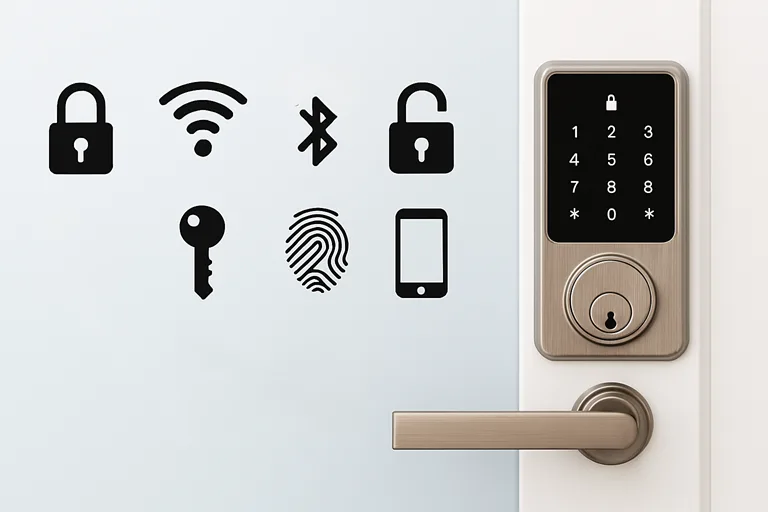
If you’ve recently installed a smart lock or are considering replacing your classic deadbolt, you’re definitely asking one thing: how do I lock and unlock it? It sounds almost too basic—but once you dive into the world of Bluetooth connections, Wi-Fi integrations, keypads, and mobile apps, it’s easy to see why so many homeowners have questions. After all, smart locks are more than just fancy electronic latches; they’re miniature computers managing one of the most important barriers in your life—your front door.
In this guide, we’ll go through every way to lock or unlock your smart lock, including using your phone, voice assistants, biometric scanners, and geofencing features. You’ll find out how these locks work, what to do if they don’t function properly, and how to protect your system from security threats. Throughout this guide, we’ll use real-life examples, expert tips, and explain the main differences between Bluetooth smart locks, Wi-Fi smart locks, and devices that connect via hubs like Z-Wave or Matter.
Whether you’re new to smart homes, enjoy doing things yourself, or just want to avoid being locked out due to a dead battery, this guide will give you the confidence to use your smart lock safely, effectively, and with full understanding.
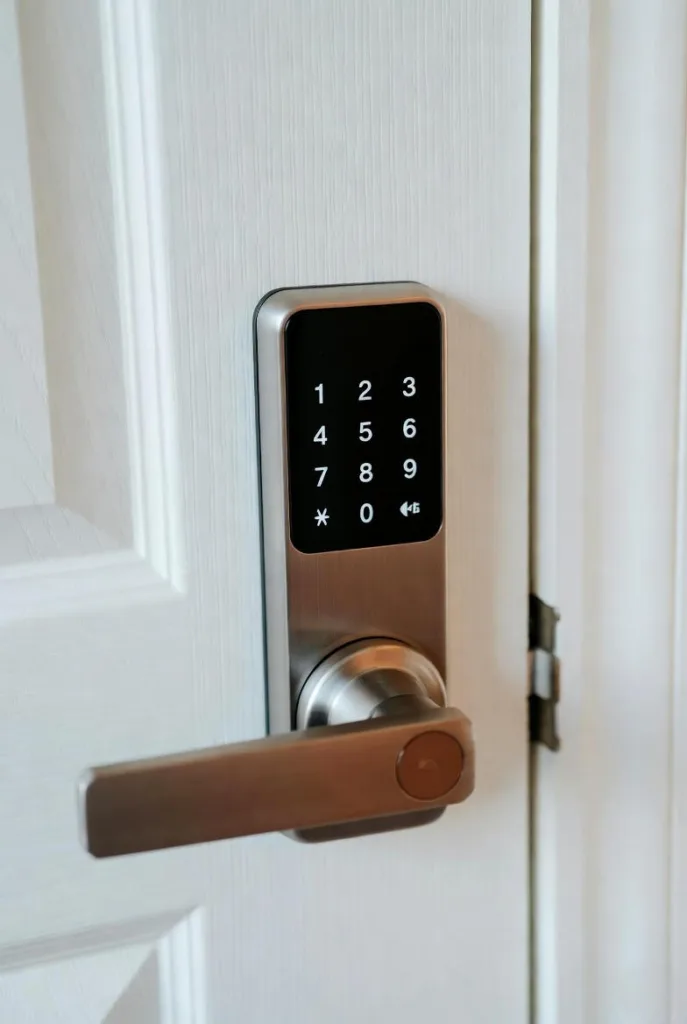
Let’s begin by exploring how the sleek digital keypad on your smart door actually works every time you lock or unlock it.
- How Smart Locks Work Before You Lock or Unlock Them
- How to Lock a Smart Lock
- How to Unlock a Smart Lock
- Troubleshooting Smart Lock Problems
- Smart Lock Security and Privacy — Keeping Digital Doors Safe
- Integrating Smart Locks with Home Automation System
- Maintenance and Best Practices for Long-Term Reliability
- FAQs
- Conclusion
How Smart Locks Work Before You Lock or Unlock Them
The Core Components of a Smart Lock System
To use your smart lock confidently, it helps to know what’s happening inside. Every smart lock has a motorized deadbolt or latch mechanism, a control board, a power source (batteries or wired), and a wireless radio module (Bluetooth, Wi-Fi, or a mesh protocol). Over this, your smartphone app or a hub sends encrypted instructions. The lock interprets them, moves its internal mechanism, and communicates status back to you.
Knowing that flow helps you understand why some methods (e.g., Bluetooth proximity unlock) work only when you’re near, and why remote unlock might depend on Wi-Fi or hub connectivity.
Communication Technologies Used in Smart Door Locks
Smart locks differ in how they talk to your devices:
- Bluetooth smart lock: Works well for local or on-site control; your phone must be within range (a few meters).
- Wi-Fi smart lock: Enables remote control from anywhere, provided the lock is connected to your home network.
- Z-Wave / Zigbee / Matter/mesh protocols: These often relay signals via a smart home hub, useful when the lock is part of a broader home automation system.
Each method has tradeoffs. Bluetooth is energy-efficient and fast, but limited range. Wi-Fi gives you remote control—but if your home network goes down, so does your remote access. Mesh protocols balance range and power efficiency but add complexity via a hub.
Why Knowing the Mechanism Helps You Lock and Unlock Efficiently
Understanding what component depends on what means you can more easily spot failure points (battery, network, motor jam). Also, when you know whether your lock is Bluetooth, Wi-Fi, or mesh, you can choose the correct method (local vs remote) for locking or unlocking.
Note: new standards like Aliro, backed by Samsung and Apple, aim to bring tap-to-unlock and hands-free unlocking across devices using NFC + UWB, bypassing some older limitations. This is the future, but for now, most smart locks rely on existing wireless paradigms.
How to Lock a Smart Lock
Locking from the Inside: Manual Controls and Thumbturns
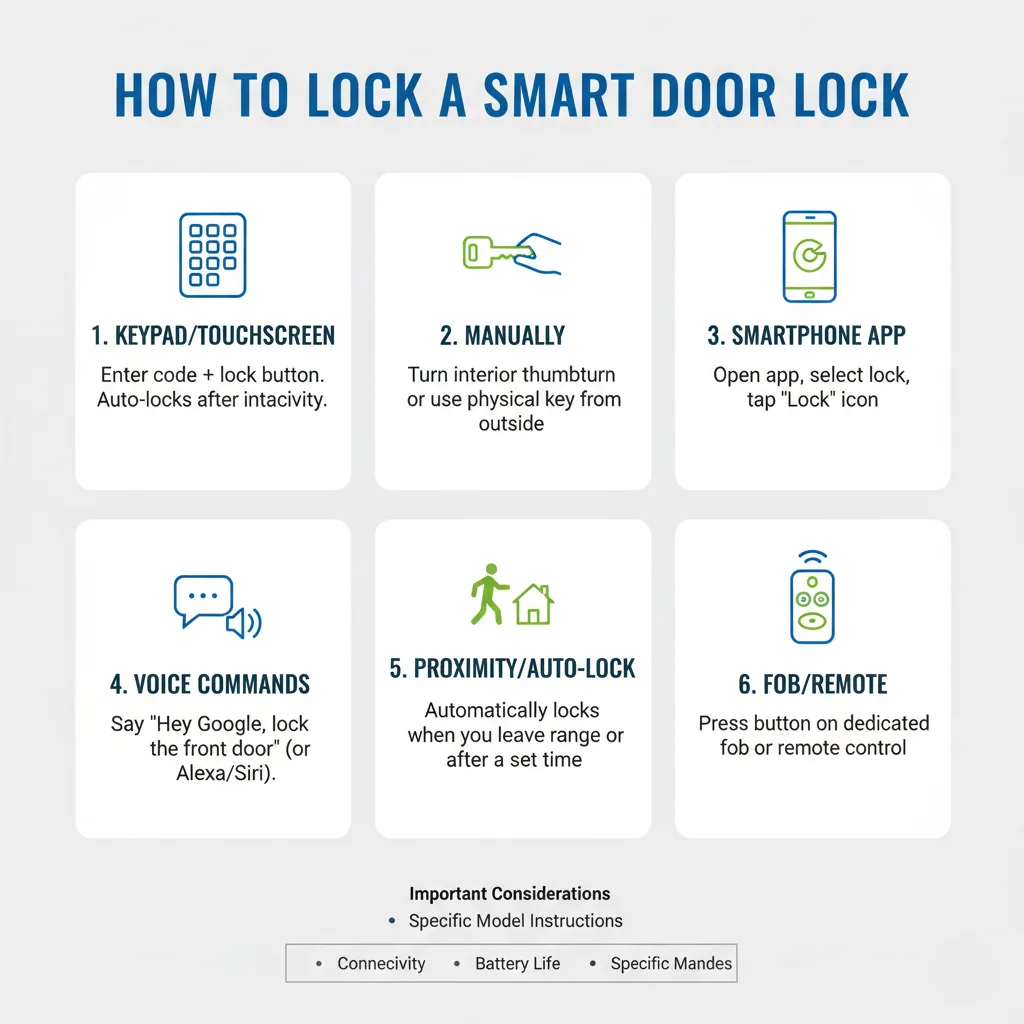
Every smart lock should preserve at least one mechanical or manual mode for locking from the inside—either a thumbturn, a button, or a manual lever. This method is the simplest and most reliable: twist the thumbturn or press the interior “lock” button until the deadbolt engages fully. No batteries, no network needed.
Locking from the Outside Using a Keypad or Touchscreen
When you’re outside and need to lock the door, many smart locks offer keypad entry. You enter your code (or press a “lock” key) and the smart lock’s motor will drive the bolt. If the lock supports the auto-lock feature, you may also set a delay after which the lock engages by itself (say, 15 seconds after closing the door).
Under this umbrella, you’ll sometimes see common keypad lock errors: dead batteries, keypad freeze, interference, or mistyped codes. It’s good practice to test your keypad method occasionally.
Using Your Smartphone App to Lock the Door Remotely
Here’s how you lock using the app, depending on your connectivity:
- Bluetooth Smart Lock: Locking When You’re Within Range
- Open the app when you are near the door. The app should detect the lock, then you tap “Lock.” The command is sent, the bolt turns, and the lock confirms.
- Wi-Fi Smart Lock: Locking Your Door From Anywhere
- Open the app anywhere with internet. Tap “Lock.” The app sends the command via cloud to your home network, which relays to the lock. The lock acts and returns a status.
One caveat: always double-check the bolt status in the app. Sometimes, network hiccups can cause a mismatch between perceived and actual lock state.
Auto-Lock Features and Geofencing
Auto-lock and geofencing are convenience features that many users fall in love with. Auto-lock means the door locks automatically after a set interval (10–60 seconds typically). Geofencing uses your phone’s GPS: when you cross a virtual fence boundary (leaving home), the lock engages automatically.
But be cautious: imperfect GPS or interference can trigger false locks/unlocks. Always test these features first and set safe delays.
How to Unlock a Smart Lock
Unlocking with a Smartphone App (Bluetooth and Wi-Fi)
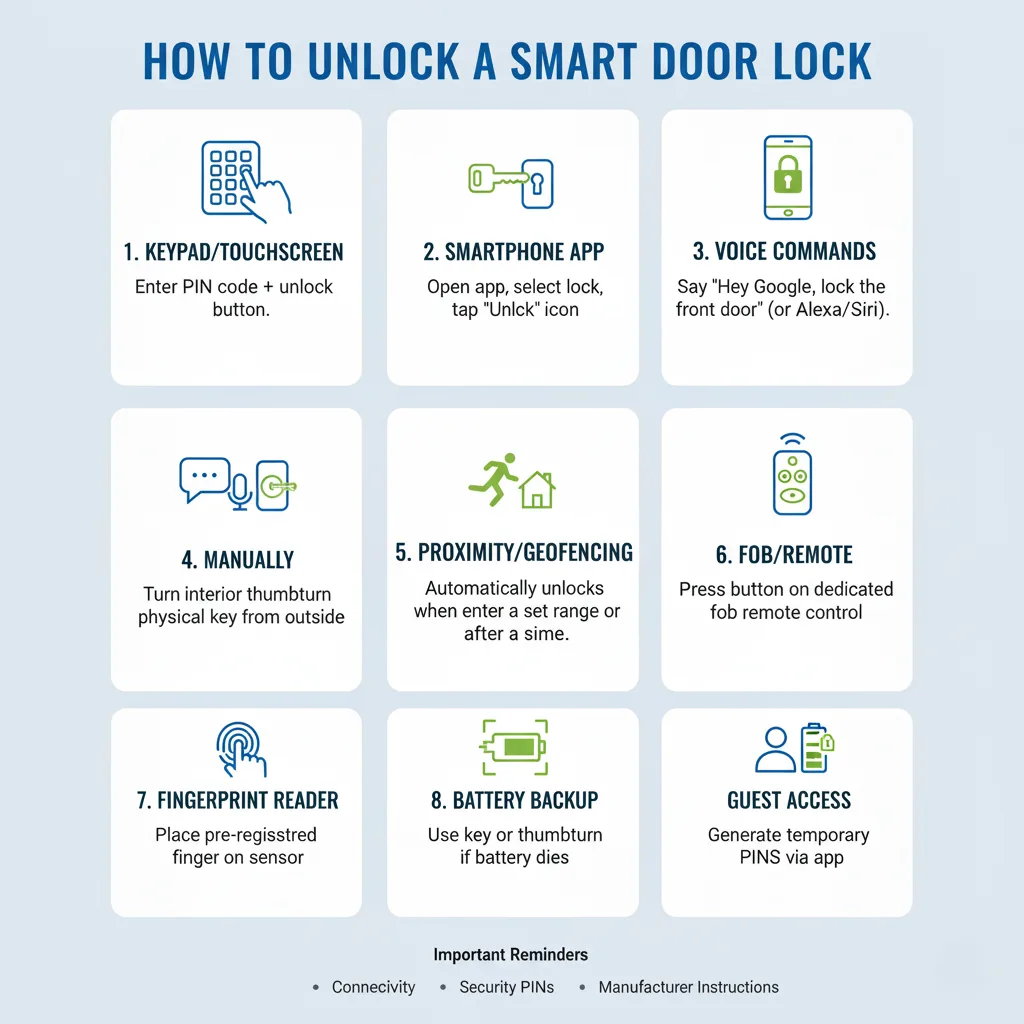
This is the most intuitive for many users. For Bluetooth locks, your phone must be within range. Open the app, tap “Unlock,” and the bolt retracts. For Wi-Fi locks, you can send that command from anywhere. This is especially useful when you need to unlock the door for a guest while you’re away.
Unlocking with a Keypad Code or PIN
In many locks, enter your PIN and press Enter, “#”, or a confirm key. If the code is valid, the bolt retracts. Smart locks often support guest access codes or one-time codes. You can issue temporary codes (for cleaners or visitors) that expire after a defined period.
This method is reliable when your phone is dead or unavailable.
Unlocking with Biometrics: Fingerprint or Face Recognition
Some newer locks have fingerprint or facial recognition options. Once your biometric information is stored, you can simply approach and scan your finger or face, and the lock will open. This way is fast, secure, and doesn’t require you to use your hands. This falls under the broader concept of biometric smart lock methods.
Unlocking with Voice Commands or NFC/RFID Cards
If your lock is integrated with Alexa, Google Assistant, or Siri, you might say, “Alexa, unlock front door.” Many systems require a PIN or secondary confirmation to avoid accidental unlocks.
Also, NFC cards or keyfobs act like hotel cards. You tap them on the reader and—if authorized—they trigger unlock.
Emergency Unlock: When the Smart Lock Won’t Open
Here’s where fallback methods matter:
- Mechanical key override: Insert and turn the physical key (if your lock has one).
- Emergency USB power port / 9V backup: some locks provide a port to apply external power so you can use digital methods even when batteries die.
This method is essential—don’t skip testing it.
Troubleshooting Smart Lock Problems
Check Battery Level and Replace Weak Batteries
Low battery is the #1 cause of failure. Use high-quality alkaline or lithium batteries. Some apps will flag “low battery” warnings. Replace before full discharge to avoid lockouts.
Verify App Connection and Device Pairing
Bluetooth pairing may fail; the Wi-Fi network may go down; and the hub may lose its connection. Check that your lock is connected properly. Check for firmware upgrades.
Reset the keypad codes or access credentials
If the codes do not work, reprogram or reset them. Some locks have a “master reset” or “admin reset” process.
Inspect the door alignment and mechanical jam issues
If the deadbolt isn’t lined up with the strike plate, the motor might stop working. As time goes on, wood can move, weather can cause it to expand, and screws can come loose. This can create problems with the door alignment and make the deadbolt hard to use, causing confusion and frustration.
Reboot or Factory Reset (If Nothing Else Works)
Certain lock issues necessitate a factory reset. Be careful: you may delete all user codes and settings. Consult the user handbook. After reset, re-add users, reconnect the app, and re-test.
Smart Lock Security and Privacy — Keeping Digital Doors Safe
Enable Two-Factor Authentication (2FA)
If your lock app supports it, always enable 2FA. A stolen phone is a weak link otherwise. 2FA adds a second barrier.
Make sure your firmware is always up to date to avoid security issues.
Manufacturers often release updates to fix problems. Some of these problems can be serious, and updates often include fixes for the latest security flaws, like those found in Yale and Ultraloq locks. It’s important not to miss any updates.
Handle guest access and temporary codes carefully.
Give out codes that expire after a certain time. Remove them right away when they’re no longer needed. Avoid using weak or repeated codes. Treat guest access as a privilege, not a convenience.
Disable or Limit Voice Unlock for Safety
Voice unlock is convenient but risky. Limit voice-based unlock unless the system enforces PIN confirmation or a biometric step first. Also, privacy concerns arise when smart locks log access or location data—especially in rental housing. The EFF has argued for regulation on how this sensitive data is handled. From a user-study perspective, people worry about privacy and misuse of logs. Always check how the app collects, retains, and shares your lock’s activity data.
Integrating Smart Locks with Home Automation System
Using Smart Hubs (Z-Wave, Zigbee, Matter)
If your lock communicates via Z-Wave or Zigbee, you can integrate it into a hub-based ecosystem (SmartThings, Home Assistant, etc.). This lets you build scenes or automations (e.g., “When I arm my alarm, lock all doors”).
Creating Routines with Alexa, Google Home, or Apple HomeKit
Use voice assistants to orchestrate multi-device actions: e.g., “Good night” routine locks doors, turns off lights, and arms your system.
Linking Smart Locks with Security Cameras and Door Sensors
Pairing with cameras or door sensors gives better situational awareness. You can configure “If door unlocked after 10 PM, record camera” rules or alerts.
Maintenance and Best Practices for Long-Term Reliability
Replace batteries before they completely drain. Do not wait for the device to alert you. Replace batteries once a year or as soon as the battery level drops below 20%.
Lubricate mechanical parts and maintain clean contacts
Avoid oil, which collects dust, and instead use lock-specific graphite or silicone sprays. Wipe down contact surfaces and test moving parts.
Regularly Audit Access Logs and Permissions
Periodically check who unlocked and when. Revoke old or unnecessary codes. Clean up your user list.
FAQs
How do I lock my smart lock without using my phone?
You can use a keypad code, mechanical key override, or interior thumbturn, depending on your lock model.
What should I do if my smart lock’s battery dies?
Use the mechanical key or apply external power via USB/9V port (if supported) and then replace batteries.
Can I unlock my smart lock remotely while I’m abroad?
Yes—if your lock supports a Wi-Fi smart lock or is integrated via a cloud-connected hub. But be cautious with security.
Is voice-based unlocking safe?
It can be secure if accompanied by a PIN or biometric authentication. Without precautions, voice unlock alone can be dangerous.
What’s the difference between Bluetooth and Wi-Fi smart locks?
Bluetooth works only locally (short range) and is power-efficient. Wi-Fi locks allow remote control via the internet.
How do I integrate my smart lock with home automation systems?
Use a hub that supports Z-Wave, Zigbee or Matter and add your lock. Then you can build routines or automations.
Can someone hack my smart lock?
There have been vulnerabilities (e.g., fingerprint theft via droplock attack). Use strong credentials, keep firmware updated, and review access logs.
Do smart locks compromise tenant privacy?
Smart locks can record entry logs and location data. In rental settings, transparency and local laws matter. EFF advocates requiring consent to collect that data.
What happens if my smart lock loses Wi-Fi but still has power?
You may lose remote unlock ability, but local (Bluetooth, keypad, mechanical) methods continue to work.
Can I temporarily share lock access with someone?
Absolutely. Most smart locks let you create temporary guest access codes or time-limited digital keys.
Conclusion
You now have a full, hands-on playbook for how to lock or unlock smart locks—covering every mode (app, keypad, biometric, backup) along with robust troubleshooting and security practices. As the smart lock landscape grows (expected to reach USD 12.9 billion by 2032), knowing how to use your device confidently is essential.
Consider arriving home after a hard day—your door locks behind you without making a sound, and when you approach the gate, it detects you and unlocks immediately. That isn’t magic; it’s smart lock technology protecting you.
If you want to increase your peace of mind, choose cutting-edge models like the August Smart Lock, Yale Assure, or Schlage Encode, which contain advanced features like remote Wi-Fi control, encryption, and multi-method unlocking. (One of these models may already be mentioned in the information or links above.)
If you found this guide helpful, try the methods on your own lock. Test app locking, keypad, mechanical override, and emergency power trick now—and make sure they work before you need them. When you’re ready to upgrade, check for a lock that supports features like biometric or tap-to-unlock (Aliro standard is coming). And if you’d like help selecting or configuring smart locks—especially for a rental property or security-conscious home—reach out. Start locking and unlocking your doors with confidence today.