
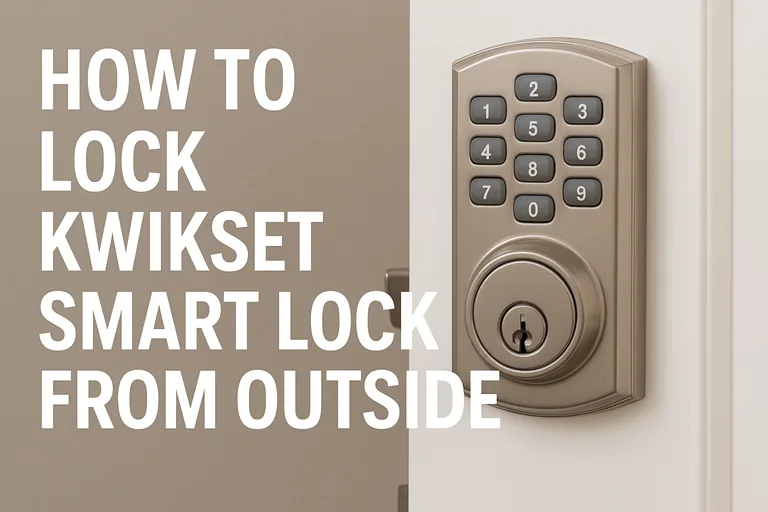
If you’ve just installed or are thinking of installing a Kwikset smart lock, you might be wondering: How do I actually lock it from outside? It’s a question many homeowners quietly ask—because while these devices look high-tech, the simple act of locking can feel almost too subtle to notice.
In this article, I’ll walk you through exactly how to lock a Kwikset smart lock from outside, using three reliable methods. We’ll dive into model-by-model details, practical steps, and proven troubleshooting. Whether you’re a DIYer, a busy parent, or simply someone who wants that extra peace of mind, by the end, you’ll feel confident in your lock and secure in your home.
- How to Lock Kwikset Smart Lock from Outside
- Know Your Model: Why Locking Steps Vary
- Method 1: Using the One-Touch Lock Button (Most Common)
- Method 2: Locking from Outside with the Physical Key
- Method 3: Locking Remotely Using the Kwikset App
- How to Enable or Adjust Auto-Lock Settings
- Troubleshooting: When Your Kwikset Smart Lock Won’t Lock from Outside
- Expert Tips: Maximising Security and Ease of Use
- Frequently Asked Questions (FAQ)
- Conclusion: Secure, Smart, and Effortless
How to Lock Kwikset Smart Lock from Outside
To give you the quick win, here are the three trusted methods to lock your Kwikset smart lock from outside:
- Press the One-Touch Lock button on the exterior keypad or touchscreen.
- Use the physical key in the exterior keyway (always works—even if tech fails).
- Lock remotely via the Kwikset app, provided your model supports Bluetooth/Wi-Fi.
Each method is covered in depth below. If you need to lock your door now, press the button or turn the key—then read on to understand which applies to your model and how to avoid common issues.
Know Your Model: Why Locking Steps Vary
Not all Kwikset smart locks are identical. Models such as Aura, Premis, Halo/Halo Touch, and Powerbolt 2 each have unique features, button locations, and connectivity. Knowing exactly which model you own helps avoid confusion when following instructions or troubleshooting. You’ll usually find the model name on the packaging or the inside battery cover.
For example, the Aura explicitly states: “From the outside, Aura has a convenient 1-touch locking button on the keypad. It can also be locked with a key from the outside.”
So yes—the steps are very similar, but small differences matter. Consider this section your “map” before heading into the actual methods.
Method 1: Using the One-Touch Lock Button (Most Common)
What the One-Touch Button Does
One of the most convenient features of many Kwikset smart locks is a dedicated One-Touch (or Lock) button on the keypad or touchscreen outside your door. Instead of entering a code or using a phone, you press once, and the deadbolt locks. Elegant. Fast. Reliable.
How to Use It – Step-by-Step
- Close the door (so the latch is fully shut and the bolt can extend).
- Locate the exterior keypad or touchscreen. On many models, you’ll see a “lock symbol” or the word Lock.
- Press the button firmly once.
- Listen for the motor engage or look for an LED indicator (often amber = locked, green = unlocked).
- Give the handle a gentle pull to test that the deadbolt is engaged (if the handle doesn’t move, you’re locked).
Troubleshooting Common One-Touch Issues
- Battery too low: Many models won’t lock via button if batteries are critically low, to prevent locking you out.
- Bolt misalignment or shallow strike-box: If the bolt hole is too shallow or the door frame is poorly aligned, the bolt may not extend fully.
- Handing/calibration issue: Some locks “hand” themselves on first power-up; if that didn’t happen, one-touch may fail.
Pro tip: For families, make a habit of pressing that one-touch before leaving the house—fast, consistent, and safe.
Method 2: Locking from Outside with the Physical Key
Traditional mechanics still matter—and that’s deliberately true for a reason on Kwikset smart locks.
Every single-cylinder model from Kwikset includes a physical keyway on the exterior side. This is your mechanical fallback: if the batteries die, the Wi-Fi fails, or you prefer a key, it’s there.
Steps:
- Insert the key into the exterior keyhole.
- Turn clockwise (or according to the manufacturer’s instructions) until the deadbolt extends fully.
- Remove the key and give a gentle test pull on the handle to confirm the door is locked.
This method offers failsafe reassurance. Even if the smart features fail for whatever reason, this already works. And because Kwikset uses its SmartKey Security™ system, you can re-key the cylinder yourself if needed.
If you ever step out and your phone dies or you realise the Wi-Fi isn’t responding, use the key. Very simple, very effective.
Method 3: Locking Remotely Using the Kwikset App
If your model supports it (Halo, Aura, Premis models with Bluetooth/Wi-Fi), locking from outside can be done from your smartphone.
3.1 Locking via the App
- Open the official Kwikset App (available on iOS and Android) and select your lock.
- Tap the Lock icon. You should receive confirmation via the app, and the LED on the lock may change.
- The lock will engage—even if you’re not standing by the door (so long as the lock has Wi-Fi connection or is within Bluetooth range).
3.2 Why Remote Locking Matters
- You can double-check that you actually locked the door when you’re already in the car.
- You can operate locks in multiple homes from the same app account.
- You can integrate with smart-home routines: e.g., locking the door automatically when you arm your home security system.
3.3 Troubleshooting
- Ensure your home Wi-Fi is broadcasting on 2.4GHz (some locks don’t like 5GHz only) and signal strength is good.
- If the lock shows “offline,” check the batteries and firmware version.
- If remote locking fails, go back to the one-touch button or key to lock manually.
Remote locking can feel like a luxury—but it’s quickly becoming standard for peace of mind.
How to Enable or Adjust Auto-Lock Settings
Many Kwikset smart locks include an auto-lock function: after a set time (30 seconds, 1 minute, 3 minutes, etc.), the deadbolt automatically relocks itself. This is especially handy when you leave the house and forget to press the button/key.
How to Enable
- In the Kwikset App (for Bluetooth/Wi-Fi models), look for Lock Settings → Auto-Lock.
- Choose your preferred delay time: 30 s, 1 min, 3 min, 5 min, 10 min.
- Save settings and test by unlocking the door and waiting for the set delay—then check if the bolt extends.
Why It Matters
Auto-lock helps reduce mistakes, but it also means you should trust your battery levels and door alignment. If auto-lock kicks in and the batteries are dead—well, that’s where the key backup shines.
Troubleshooting: When Your Kwikset Smart Lock Won’t Lock from Outside
Despite the best design, issues do happen. Here are the most common problems—and how to fix them, based on real-life user experience and official documentation.
Common Problems & Fixes
- Dead or weak batteries: Replace with four fresh alkaline (not rechargeable) AA batteries; the manual warns against using lithium or lower-grade cells.
- Keypad unresponsive: Might be due to stuck buttons, dirt, or power issues—clean the keypad gently and reseat batteries.
- Bolt fails to extend or stops halfway: Check that the bolt hole (strike plate) is at least 1″ deep, and the door closes flush. Holes too shallow cause jamming.
- Handing not properly set: Some locks teach themselves orientation on first install. If they weren’t installed correctly, the lock may behave unpredictably.
- App/wireless fails: If the remote control isn’t working, check Wi-Fi or Bluetooth, reboot the lock via app, and ensure your router is stable.
In most homes, simply replacing batteries and adjusting the strike plate solves 90% of “can’t lock from outside” issues. If you still have trouble, consider calling a locksmith or contacting Kwikset support.
Expert Tips: Maximising Security and Ease of Use
Here are some seasoned recommendations (not just marketing fluff) that stem from genuine user experience and expert installations.
- Test your lock regularly. After you install it (or change batteries), test both the one-touch button and key method—don’t wait for a crisis.
- Use a spare key. Even with smart tech, a mechanical key gives added assurance—especially if you’re away for a bit.
- Register your lock in the app. Firmware updates, access logs, and alerts are only available if the lock is properly paired.
- Avoid slamming the door. Heavy slams can misalign the latch or bolt. Teach household members to close doors gently.
- Teach everyone the one-touch method. While it’s intuitive, having each family member practise ensures consistent security habits.
These little habits build trust—so when you leave home, you’re not wondering “Did I lock the door?” but rather knowing you did.
Frequently Asked Questions (FAQ)
Why won’t my Kwikset lock when I press the button?
If pressing the external button doesn’t lock the door, likely the battery is too low, the bolt hole is shallow or misaligned, or the lock’s handing isn’t correct. Check these first.
Can I lock my Kwikset without entering a code?
Yes—most smart models feature a one-touch lock button on the outside, no code required.
Does the Kwikset app let me lock remotely?
A: It does—for compatible models (Aura, Halo, etc.) that support Bluetooth/Wi-Fi. Install the Kwikset App, pair your lock, and tap the Lock icon.
What happens if my lock’s batteries die?
The door will remain in its last known state (locked/unlocked). You can still lock/unlock using the physical key.
Can auto-lock be turned off?
Yes—go into the App or settings menu on the interior of the lock and disable or adjust the auto-lock delay. Many users switch it to a 1-minute delay for convenience.
Conclusion: Secure, Smart, and Effortless
Locking a Kwikset smart lock from outside is deceptively simple—but the elegance lies in the blend of smart tech and traditional reliability. Whether you’re pressing the two-press one-touch button, turning a physical key, or tapping your smartphone app, you’ve got a proven method that works.
By now, you know how to lock a Kwikset smart lock from outside, the steps for your specific model, how to enable auto-lock, and how to troubleshoot common issues. With the right habits—testing the lock regularly, using fresh batteries, and making use of the fallback key—you can leave home or tuck in for the night with genuine peace of mind.
If you’re yet to buy your smart lock, or are upgrading to ones with more robust features, consider the latest models like the Aura or Halo lines—both delivering premium build, smart-home integration and that key extra layer of convenience and security. Your front door is the first line of defence; make sure it locks the right way, every time.
Ready to lock in your home’s security? Visit the Kwikset product page, choose your smart lock with confidence, and make locking from outside effortless. Your home—and your peace of mind—will thank you.