
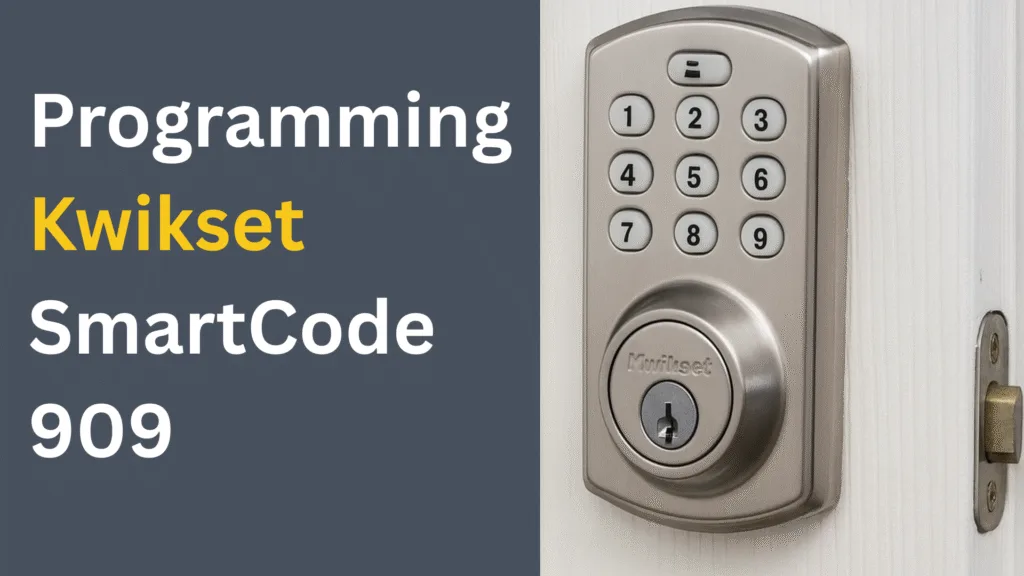
If you’re staring at that keypad on your lock and wondering, “How on earth do I get this thing set up?”, I hear you. We’ve all been there. The good news? The programming Kwikset SmartCode 909 is simpler than it looks — and today I’m going to walk you through every nook and cranny so you knock it out of the park. Whether you’re a DIYer who inherited the lock on a rental unit or a homeowner swapping out a tired old deadbolt, this guide’s for you.
We’ll cover what the Kwikset SmartCode 909 programming instructions really mean (without jargon), how to add and delete codes, how to deal with the scenario where you don’t even have the master code, and how to troubleshoot like a pro. Let’s roll.
Quick Overview of the Kwikset SmartCode 909
Picture this: you walk up to your door, you punch in your code, the deadbolt clicks, you’re in. That’s the experience the Kwikset SmartCode 909 is built for. According to the manufacturer, it “installs in minutes with just a screwdriver—no hard wiring required.”
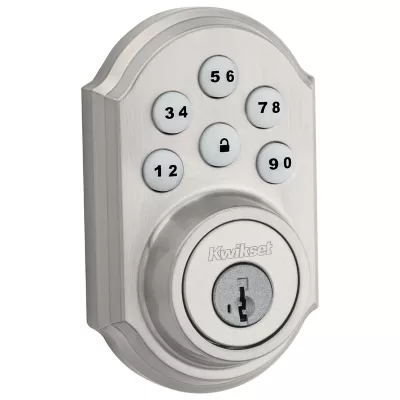
Here are some key features:
- One‐touch locking—press the “Lock” button, and the door’s locked.
- Compatible with the SmartKey® re‑key system, meaning you can re‑key the lock to work with your current key if you like.
- Installable on both left‑hand and right‑hand doors (nice).
- Takes 4 AA batteries; good for over a year under typical use.
Why does this matter? Because many competitors’ guides stop at “installation done”, they gloss over code programming. You’re going to get the full deal here.
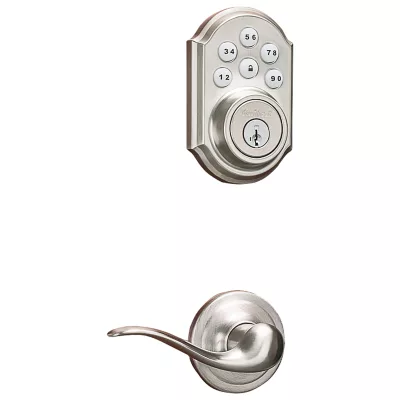
Image credits: 909-smartcode-traditional-electronic-deadbolt-with-tustin-lever
Programming Kwikset SmartCode 909
Programming with a Master Code
If you have the master code, you’re in luck—you’ve got the smoothest ride. Here’s how to add user codes when the master code is enabled:
- Keep the door open during programming (very important).
- Press and hold the Program button until the keypad flashes green (about 5 seconds).
- Enter the new Mastercode (4‑8 digits).
- Press “Lock” once.
- Re‑enter the Mastercode. Press “Lock” again.
- The keypad flashes green once, and you hear one beep when successful.
- To program a user code: Press the Program button once. Then press the Program button again and again equal to the user code position (for example, 3 times to set the third user code slot). Enter the user code (4‑8 digits), press Lock.
- Test the new user code to make sure it unlocks the door while open.
Why you’ll feel like a pro: Because you’re in control, you have the master key to programming the fortress. Many guides assume you already know this—but we’ll go deeper.
Programming Without a Master Code
Yes, you can. This is the trickier scenario—say you inherited the unit in a rental, or the previous owner moved out and forgot to hand over the master code. First off: you’ll need to perform a factory reset so you wipe existing codes.
Here’s what you do:
- Remove the battery pack.
- Press and hold the Program button while reinserting the battery pack. Keep holding until the lock beeps and the status LED flashes red.
- Press the Program button once more; when the LED flashes green and you hear one beep, you’re clear.
- Now you perform the door handing process (so the lock knows which way the door swings), then program a user code as explained earlier—but you may set a code without the master code.
It’s respectful to mention that some users report that they still can’t do it because the lock has old codes or the clutch is jammed. One Reddit user put it bluntly:
“From what I’ve read, you need an old code or the master code to do anything. I don’t see the master code in there.”
That’s their pain. You’re going to avoid it because we’re thorough.
Adding a New User Code
Okay, you’ve got either the master enabled or you’ve reset it. Time to add a new user. Here’s an example: you want to give your cleaner access on Monday mornings only, or your teenager a code.
- While the door is open, press the Program button (once for the master enabled scenario, multiple times for the code slot).
- Enter your code (4‑8 digits).
- Press “Lock”.
- Test the code immediately while the door is open.
Simple. But here’s where people trip: duplicate codes or too slow input trigger a timeout. The official manual states:
“Make sure the user code is not a duplicate and that it is between 4 and 8 digits.”
And:
“Programming timeout: If no button is pressed for five seconds, the system will time out and you will need to restart the procedure.”
Pro tip: Write the codes down, keep them secure.
Troubleshooting Common Programming Issues
No one likes being locked out of their own door. But you’ll dodge that with these real‑world fixes.
Issue: Keypad flashes red three times with three beeps.
The programming failed. It could be any of: duplicate code, code outside 4‑8 digits, or you paused for more than 5 seconds.
Issue: Deadbolt latch won’t retract/extend or the door doesn’t lock properly.
Often, the door handing process was skipped. The manual says:
“The latch is installed upside down… Perform the door handing process while the door is open.”
Issue: LED solid red after door handing process.
Misinstallation or misalignment. Example: mounting plate tension, wrong latch used, etc.
Issue: Battery seems drained in days.
The lock is rated for more than a year of typical use. If it drains fast, door misalignment, causing repeated failed locks, may be killing the battery faster.
Real Life Case Study:
A property manager in Texas installed 15 units with SmartCode 909 in a new housing complex. They skipped checking “switch #2” which turns off auto‑lock. As a result, residents found their doors relocking instantly—not a happy welcome home. Once they followed the manual and set the switch properly and retested, complaints disappeared. (Switch #2 controls 30‑second auto‑lock.)
Installation & Setup Tips
Let’s make sure the hardware’s right. Because if the physical install is off, programming will feel like rocket science.
- Measure your door thickness (typically 1 3/8″ to 1 3/4″). The SmartCode 909 supports that range.
- The hole in the door (cross bore) is typically 2‑1/8″ (54mm).
- Make sure the latch bolt goes fully into the strike plate without binding. If it binds, your keypad/motor will struggle.
- Install the strike plate deep enough (1″ or 25mm minimum) to prevent bolt hitching.
- Insert fresh non‑rechargeable alkaline batteries. Avoid rechargeable—they have lower voltage when tested by the lock’s electronics.
- Check switches inside the interior unit: Switch #1 controls the back‑lit keypad; Switch #2 controls auto‑lock; Switch #3 controls audio.
FAQs
Can I program my Kwikset SmartCode 909 without the master code?
Yes. While less common, you can program certain user codes on inherited or second-hand locks by performing a factory reset and following step-by-step instructions. Always follow LED prompts carefully to ensure proper programming and avoid overwriting existing codes.
How do I add a new user code on the Kwikset SmartCode 909?
Press the program button, enter your master code, then the new user code (4–8 digits). The LED should flash green to confirm. Test the code multiple times before finalizing.
What do the different LED colours mean during programming?
Green indicates successful programming, red signals an error, and flashing red may mean a timeout or duplicate code. Understanding LED feedback prevents programming mistakes.
Can I reset the Kwikset SmartCode 909 if I forget the master code?
Yes, a factory reset wipes all codes and allows you to program a new master code. Ensure you have physical access and batteries installed before attempting a reset.
Does programming affect the warranty?
No, programming itself doesn’t void the warranty. However, improper installation or damage during programming may affect warranty coverage.
How many user codes can I store on SmartCode 909?
Up to 16 unique user codes can be stored. Plan code allocation for family members, rental units, or temporary guests to avoid conflicts.
Should I watch a video tutorial instead of reading this?
Yes, YouTube has step-by-step video walkthroughs. However, pairing video guidance with a text reference ensures you understand LED signals and troubleshooting nuances.(And yes, YouTube videos exist with the exact phrasing “programming without a mastercode.”)
Conclusion
There you have it—from unboxing to code programming to troubleshooting when the lock’s acting up. The beauty of the programming Kwikset SmartCode 909 process is that you’re not locked into the manufacturer’s bare‑bones manual. You can master it. You can dominate it. And when you’re done, you’ll walk through that front door each time without a second guess.
If there’s one takeaway: test everything while the door is open. Saves you the “Why won’t it lock back?” panic at midnight.
Go ahead — try it. Program your first user code. Give a guest code. Delete it after their stay. The lock becomes yours.
And if you found this article helpful, consider grabbing the device (if you haven’t already) and taking control of your door like a smart‑lock boss because you deserve straightforward peace of mind.
Happy programming.