
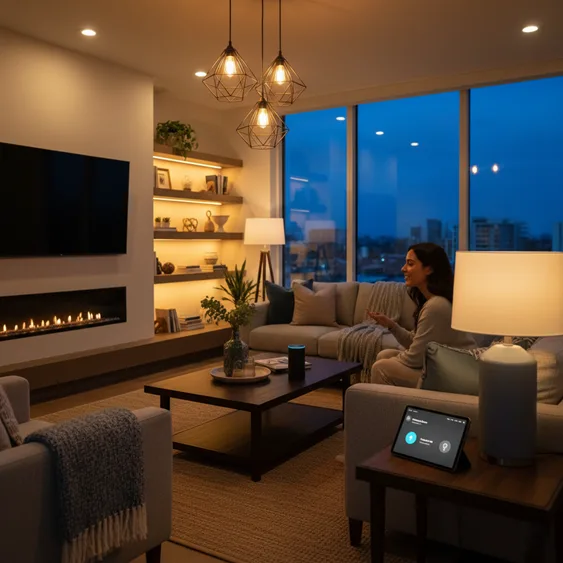
You’ve finally done it. You bought a couple of those shiny, new smart bulbs, an Amazon Echo speaker is sitting pretty on your counter, and you’re ready to ditch the caveman ritual of flipping a wall switch. You’re ready to be the part of smart home revolution. But let’s be honest, the moment you unbox that first bulb, the excitement can quickly give way to a little panic. Will this Wi-Fi light bulb even talk to my Wi-Fi router? Which app do I use? Is it going to take an hour to turn on a lamp? You’re searching for a simple, straightforward guide on how to use smart lights with Alexa, and you’re not alone.
Relax. Take a deep breath. Getting your smart lights to play nice with Alexa isn’t rocket science, but there are a few key steps you need to nail down, especially if you want your setup to feel seamless, not stressful. For a tech-savvy smart home owner, a DIYer or a new renter, the goal isn’t just to turn a light on—it’s to have the perfect light turn on, at the perfect time, with the least amount of fuss. That, my friend, is what we are going to accomplish. This is not a dry, copied-and-pasted handbook. This article covers all aspects of using smart lighting with Alexa, including initial setup, voice commands, advanced automation, and troubleshooting. “Alexa, why are you ignoring me?” moments. By the end of this article, you’ll be a lighting maestro, controlling your entire environment with nothing but the sound of your voice.
- Getting Started with Alexa Smart Lighting: Choosing Your Tech
- The Essential Step-by-Step Setup Guide
- Mastering Alexa Voice Commands and Groups
- Advanced Automation with Alexa Routines: Set it and Forget It
- Troubleshooting Common Smart Light Issues (When Things Go Sideways)
- Frequently Asked Questions (FAQ)
- The Final Turn-On: Making the Smart Light Leap
Getting Started with Alexa Smart Lighting: Choosing Your Tech
Before you even consider the Alexa app, you should grasp the various types of smart lights that exist. Not all bulbs are made equal, and if you know the difference will save you a lot of headaches in the future.
Here’s the deal: smart lights fall into a couple of main camps when it comes to connecting to your network and, eventually, to Alexa.
The Hub vs. Hub-less Debate
- Hub-Required (e.g., Philips Hue): These systems use a dedicated bridge or hub that plugs into your router. It communicates with the bulbs using a protocol called Zigbee. The downside? It’s an extra piece of hardware and an additional cost upfront. The upside? Rock-solid reliability and super-fast response times. The Philips Hue ecosystem, for instance, is the gold standard for a reason: it’s incredibly stable and offers a huge range of products.
- Hub-less (Wi-Fi or Bluetooth, e.g., Kasa, Wiz, LIFX): These bulbs connect directly to your home Wi-Fi network or via Bluetooth to your Echo device. The downside? Too many Wi-Fi devices can sometimes clutter your network and cause sluggish performance. Also, you must use your 2.4GHz Wi-Fi band for most of these, as the 5GHz band is generally incompatible (so make sure you know which one your phone is connected to during setup!). The upside? They are often more affordable and require zero extra hardware. They’re great for renters or small apartments.
Pro-Tip for DIYers: Many newer Echo devices (like the Echo Show and Echo Plus) actually have a built-in Zigbee hub. This means if you buy a Zigbee-based bulb, you might be able to skip the manufacturer’s hub entirely! Check your specific Echo model to see if it’s a built-in hub hero.
The Essential Step-by-Step Setup Guide
You’ve picked your bulbs. You’ve screwed them in. The light is on (hopefully). Now for the real magic—getting Alexa to recognize and control them. This process generally follows a simple two-part handshake.
Part 1: Initial Setup with the Manufacturer’s App
Before Alexa can see your light, the light needs to see your Wi-Fi.
- Download the Right App: Grab the official app for your brand (Kasa Smart, Wiz, Smart Life, etc.) from the official App Store or Google Play.
- Power On and Pair: Screw the bulb in and turn the physical light switch on. The bulb will typically start flashing, indicating it’s in pairing mode.
- Connect to Wi-Fi: Follow the in-app prompts. This is where you connect the smart light to your home’s 2.4GHz Wi-Fi network. Seriously, don’t forget the 2.4GHz band. If you have trouble, the common reset trick is turning the bulb on and off five times until it flashes fast.
- Name Your Device: This is critical. Give the light a simple, logical name, like “Desk Lamp,” “Kitchen Overhead,” or “Bedroom Nightlight.” Avoid names like ‘Bulb 45’ or ‘Living Room Light A’—Alexa will have no idea what you’re talking about.
Part 2: Integrating Your Smart Light with Alexa
The light is on the network and has a proper name—time for Alexa to meet its new friend.
- Open the Alexa App: Launch the Amazon Alexa mobile application.
- Enable the Skill: Go to the “More” tab (bottom right) and select “Skills & Games.” Search for the brand of your light (e.g., Wiz, Kasa, or Smart Life). Tap “Enable to Use” and sign in with the username and password you created in the manufacturer’s app. This is the handshake.
- Discover Devices: Once the Skill is linked, you can either wait for a prompt or manually initiate discovery. Go to the “Devices” tab, tap on the “+” icon in the top right, select “Add Device,” and then choose “Light“. In a few moments, Alexa will find all the new devices you named in the manufacturer’s app.
- Assign to a Group (Do Not Skip This!): This is where you elevate from basic to genius. When prompted, assign your light to a logical Smart Home Group (like “Living Room” or “Master Bedroom“). This allows for much smoother voice control.
Short Sentence Break: Seriously, groups are everything.
Mastering Alexa Voice Commands and Groups
The voice command is the whole point, right? Forget using the app; you should be able to control your lights hands-free.
Core Voice Commands for Individual Lights
The beauty of the system is its simplicity. Say your wake word (Alexa) and then one of these phrases:
| Action | Voice Command Example |
|---|---|
| On/Off | “Alexa, turn on the **Desk Lamp**.” |
| Dimming | “Alexa, dim the **Kitchen Overhead** to 50 percent.” |
| Brightness | “Alexa, brighten the **Nightlight**.” or “Alexa, set the **Nightlight** to 80%.” |
| Color Change | “Alexa, change the **Living Room Light** to blue.” |
| Color Temp | “Alexa, set the **Study Light** to warm white.” |
Punchy Note: Did you know Alexa recognizes over 133 unique color names? Go beyond red and blue. Try “Cornflower,” “Violet,” or “Salmon” for a real mood adjustment!
The Power of Group Control
Remember that group assignment? Here’s why it’s a game-changer. If you put “Desk Lamp” and “Overhead Light” into a group named “Office” and put your Echo device in the same group, your commands become ultra-efficient.
- Group Command: “Alexa, turn off the Office.” (Turns off both lights).
- Specific Group Command: “Alexa, dim the Office to 25 percent.”
- Room Ambience: “Alexa, set the Living Room to Movie Night.” (If you have a pre-saved scene in the manufacturer’s app.)
Key takeaway for seamless use: If you’re standing in the living room and say, “Alexa, turn on the lights,” your Echo device, assuming it’s in the “Living Room” group, is smart enough only to turn on the lights associated with that room. It’s context-aware. That’s peak smart home right there.
Advanced Automation with Alexa Routines: Set it and Forget It
Controlling a light with your voice is cool, but automation is next-level. This is where you create a truly seamless and energy-efficient smart home experience. You don’t want to ask for the light to come on; you want it to just happen. That’s the job of an Alexa Routine.
Routines allow you to chain together multiple actions with a single trigger.
Creating an Essential Routine
- Open the Alexa App and navigate to the “More” tab, then select “Routines.”
- Then tap the + icon to create a New Routine.
- Set the Trigger (“When this happens”): This is what kicks off the action.
- Voice: “Alexa, Good Morning” (The most common start.)
- Time/Schedule: Set it for Sunset or a specific time, like 7:00 PM (Perfect for renters who want to simulate occupancy).
- Device/Sensor: If you have a smart lock or motion sensor, you can trigger it when the Front Door is unlocked or when Motion is detected.
- Set the Action (“Add action”): This is what happens after the trigger.
- Select “Smart Home” -> “Lights.”
- Choose the light or group you want to control (e.g., “Bedroom Lights“).
- Set the specific state: Power On, Brightness (100%), and Color Temperature (Cool White).
- Bonus Action: You can then add a second action, like “Alexa will say: ‘Time to wake up!'” or “Play Morning Playlist from Spotify.”
Two Must-Have Routines for Smart Light Owners
- The “Goodnight” Routine: Triggered by the command, “Alexa, Goodnight.”
- Action 1: Turn off the Living Room Group.
- Action 2: Dim the Bedroom Nightlight to 10% Warm White.
- Action 3: Set the Thermostat to 68 degrees. (See how it integrates with other devices? That’s the ecosystem magic!)
- The “Away” Mode Routine (Enhanced Security): Triggered by the command, “Alexa, I’m leaving.”
- Action 1: Turn off All Lights immediately.
- Action 2: Turn on the Hallway Light on a schedule (e.g., randomly between 7:00 PM and 10:00 PM). This is a fantastic security feature that makes it look like someone is home.
Troubleshooting Common Smart Light Issues (When Things Go Sideways)
Even the most tech-savvy among us occasionally hit a snag. Your light is unresponsive. You say the command, and Alexa says, “Hmm, I can’t seem to locate that device.” Don’t throw your Echo out the window just yet. Here are the quick fixes for the most common issues.
The Connectivity Quagmire
- The Power Trap: Is the physical wall switch on? This seems obvious, but a smart bulb must be powered on to respond to a voice command. If someone flipped the switch off, the bulb is dead to the network. Always check the switch first.
- The 2.4GHz Gaffe: Did you verify your light is connected to your 2.4GHz Wi-Fi network? Most smart lights don’t work on the faster 5GHz band. If your phone is on 5GHz during the initial setup, you could have connection problems.
- Wi-Fi Check: Your Echo device needs a stable connection to the internet. If you can ask Alexa the time and date, the internet connection is good, meaning the problem lies with the bulb or the skill . Try restarting your modem and router anyway; it’s the oldest trick in the IT book for a reason.
The App & Skill Conflict
- Check the Manufacturer’s App: Can you control the light using the original app (Kasa, Wiz, etc.)? If yes, the problem is between Alexa and the manufacturer’s skill. If no, the problem is with the bulb’s Wi-Fi connection.
- Disable and Re-enable the Skill: A fresh start fixes many a digital squabble. In the Alexa app, go to “Skills & Games,” find the skill, select “Settings,” and choose “Disable Skill.” Then immediately re-enable it and ask Alexa to “Discover Devices“. This re-establishes the connection token between the two services.
- Outdated Firmware: Make sure both the Alexa app and the smart light bulb’s firmware (checked via the manufacturer’s app) are up to date. Compatibility issues often stem from one device being behind the times.
Frequently Asked Questions (FAQ)
Do I need a Smart Home Hub to use smart lights with Alexa?
It depends on the brand. Hub-less bulbs (like Wiz or Kasa) connect directly to your Wi-Fi and communicate with your Echo device that way. Others, like Philips Hue, require a separate hub (or bridge) for a more stable and powerful connection. Some Echo models also have a built-in Zigbee hub.
Why won’t my Alexa light bulb connect to my Wi-Fi?
Most smart lights only work on the slower, older 2.4GHz Wi-Fi network band, not the 5GHz band. Make sure your phone is connected to the 2.4GHz network during the initial setup process. Also, ensure the physical light switch is on and the bulb is in its flashing pairing mode.
What is the best way to rename my smart lights for Alexa?
Keep the names simple, unique, and easy for Alexa to understand, like “Den Lamp” or “Back Porch.” Avoid special characters or numbers. Most importantly, assign them to logical Groups (e.g., “Downstairs“) so you can control multiple lights with a single, clear voice command.
How do I control the color and dimming on my Alexa smart lights?
You can control color and dimming using simple voice commands. For dimming, say: “Alexa, set the Living Room Light to 30 percent.” For color, say: “Alexa, change the Bedroom Light to magenta.” You can also use the slider controls within the Alexa app.
Can I set my smart lights to turn on automatically at sunset?
Yes, this is an excellent feature accomplished using Alexa Routines. In the Alexa app, create a new Routine and set the trigger to “Schedule” based on Sunset. For the action, select your Smart Light group and set it to Power On at your desired brightness or color.
What is the “Hunches” feature and how does it affect my smart lights?
Alexa Hunches is an intelligent feature where Alexa learns your habits. For example, if you routinely turn off your kitchen light after 10 PM, and you forget, Alexa might say, “I have a hunch the kitchen light is still on. Would you like me to turn it off?” It’s proactive smart home automation that adds another layer of convenience.
The Final Turn-On: Making the Smart Light Leap
If you’ve made it this far, you’ve got a massive leg up on the competition. You’re not just an owner; you’re an engineer of your own cozy, convenient environment. The transition to a voice-controlled home is truly one of those quality-of-life upgrades that you can’t go back from. Say goodbye to stumbling through a dark hallway or having to get out of your warm bed because you forgot to hit the switch.
This isn’t about laziness; it’s about efficiency, security, and a touch of theater. You want the lights to dim automatically for movie night, a bright blue to wake you up in the morning, and the hallway to glow just enough for a midnight snack run. You’re building an intuitive home, and how to use smart lights with Alexa is the cornerstone of that project.
So go ahead. Install that next bulb. Enable that Skill. Set up your first “Alexa, I’m home” Routine. The future of lighting is hands-free, and you’re now a certified master of the system.
Are you ready to boost your home’s IQ? Click here to browse the most recent range of Alexa-compatible smart lighting and begin your hands-free trip now!
Sources help
- cnet.com
- reviewed.com
- androidcentral.com
- lumarysmart.com
- nerdplusart.com
- slashgear.com
- gelighting.com
- lifewire.com
- smarthomeexplained.com
- tp-link.com
- tomsguide.com
- iottysmarthome.com
- asurion.com
- coohom.com
- amazonforum.com
- amazonforum.com
- amazon.com